Add missing information to your saved fics in Calibre
Extract metadata from downloaded fic files and make them searchable
You have a fic you saved a while ago. The fandom, relationships, tags and word count are written inside it, but much of that never reaches Calibre, so you can’t sort or search by it.
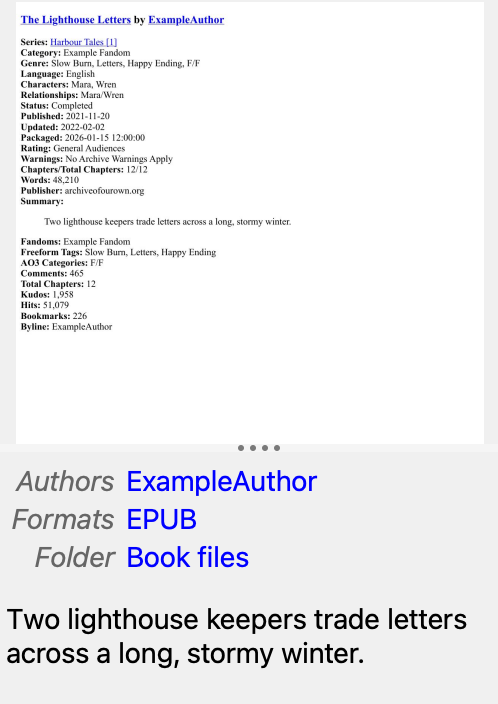
Maybe the story has since been deleted, AO3 is down, or you’d rather not add to the load on its servers. Extract Fanfic Metadata reads the information inside the file and adds it to your Calibre library. It works offline, without having to reach the original story.
Depending on the file, it can also find the author, summary, story link, chapters and more. It can write what it finds to Calibre’s standard fields or to your own custom columns.
- Calibre, version 6.0 or newer.
- Saved fanfiction already in your Calibre library: EPUB files, AO3’s own PDF and HTML downloads, and some text files. See which files work.
- FanFicFare is optional.
Calibre, FanFicFare and the plugin are free.
New to Calibre? Start with FFF basics.
1. Install the plugin
- Open the latest release. Under Assets, click the file whose name starts with extract_fanfic_metadata to download it. Don’t unzip it.
- In Calibre, open Preferences → Plugins → Load plugin from file and choose the ZIP file you downloaded.
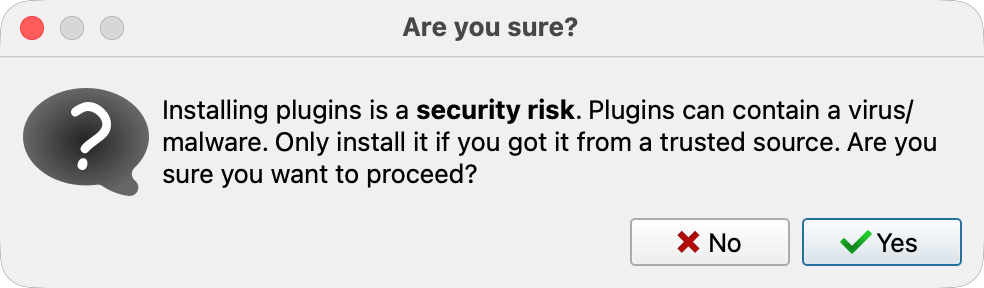
-
Calibre warns that plugins are a security risk. If you downloaded the file from the release page above, click Yes.
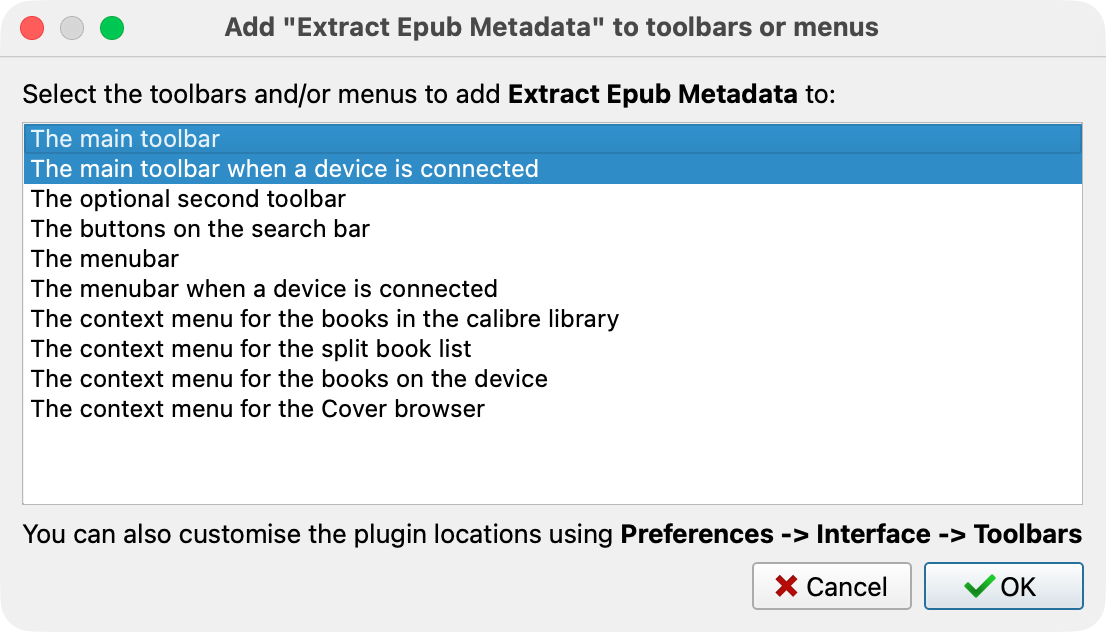
-
Calibre asks where to put the button. Make sure The main toolbar is selected and click OK. This window uses the plugin’s old name, Extract Epub Metadata.
-
Click Restart calibre now.
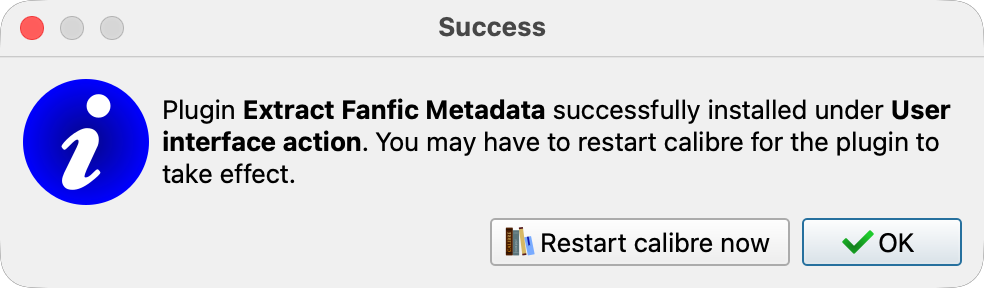
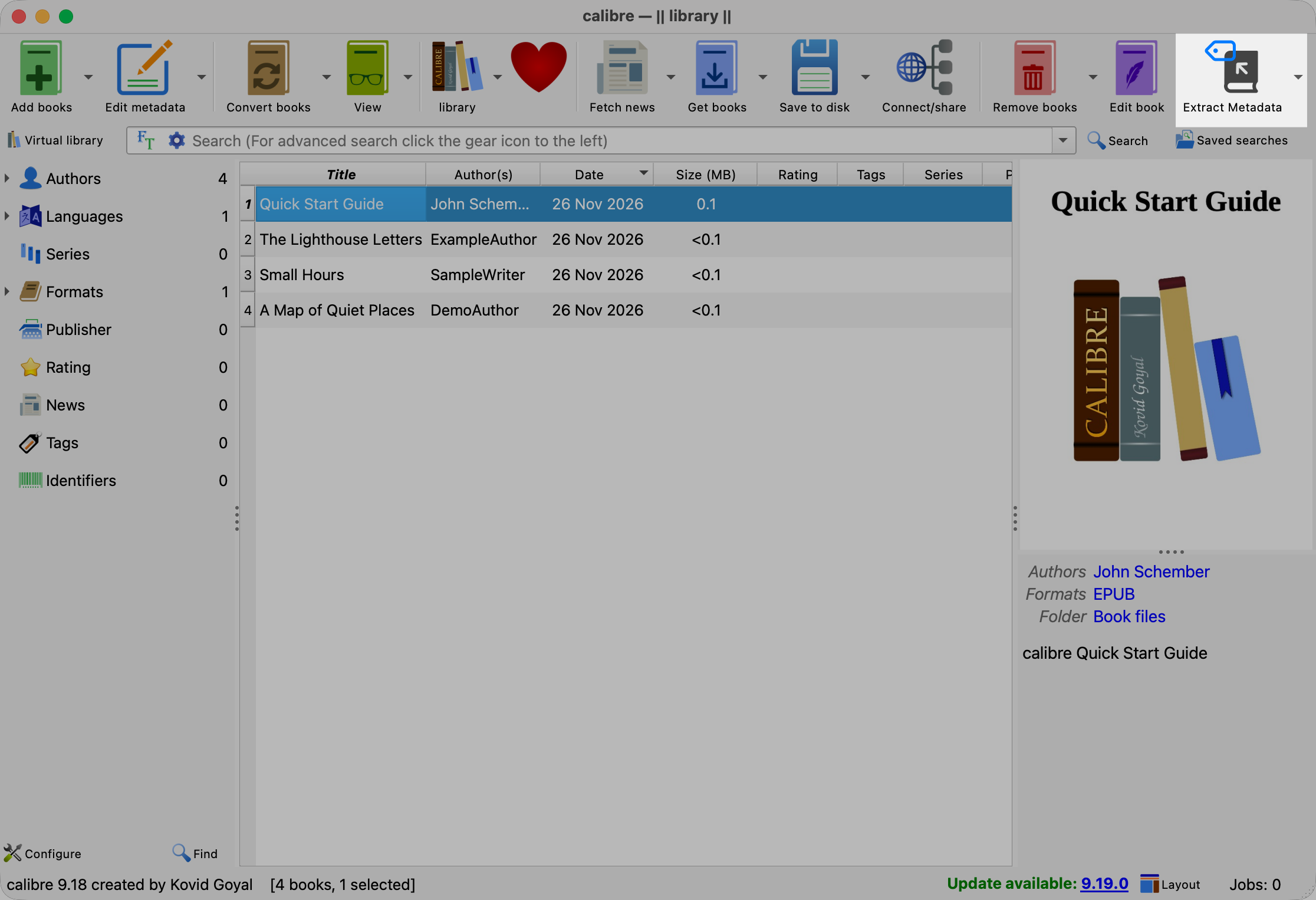
You now have an Extract Metadata button on the toolbar.
2. Choose what to update
Open Preferences → Plugins → Extract Fanfic Metadata → Customize plugin.
For your first go:
- Make sure Update standard Calibre metadata is ticked. This fills Calibre’s own fields, such as author, tags and summary.
- Make sure Save all extracted metadata is unticked. It’s meant for use with FanFicFare and needs a column set up first. (Before version 1.4.2 it was on to begin with.)
- Leave Preview before writing ticked.
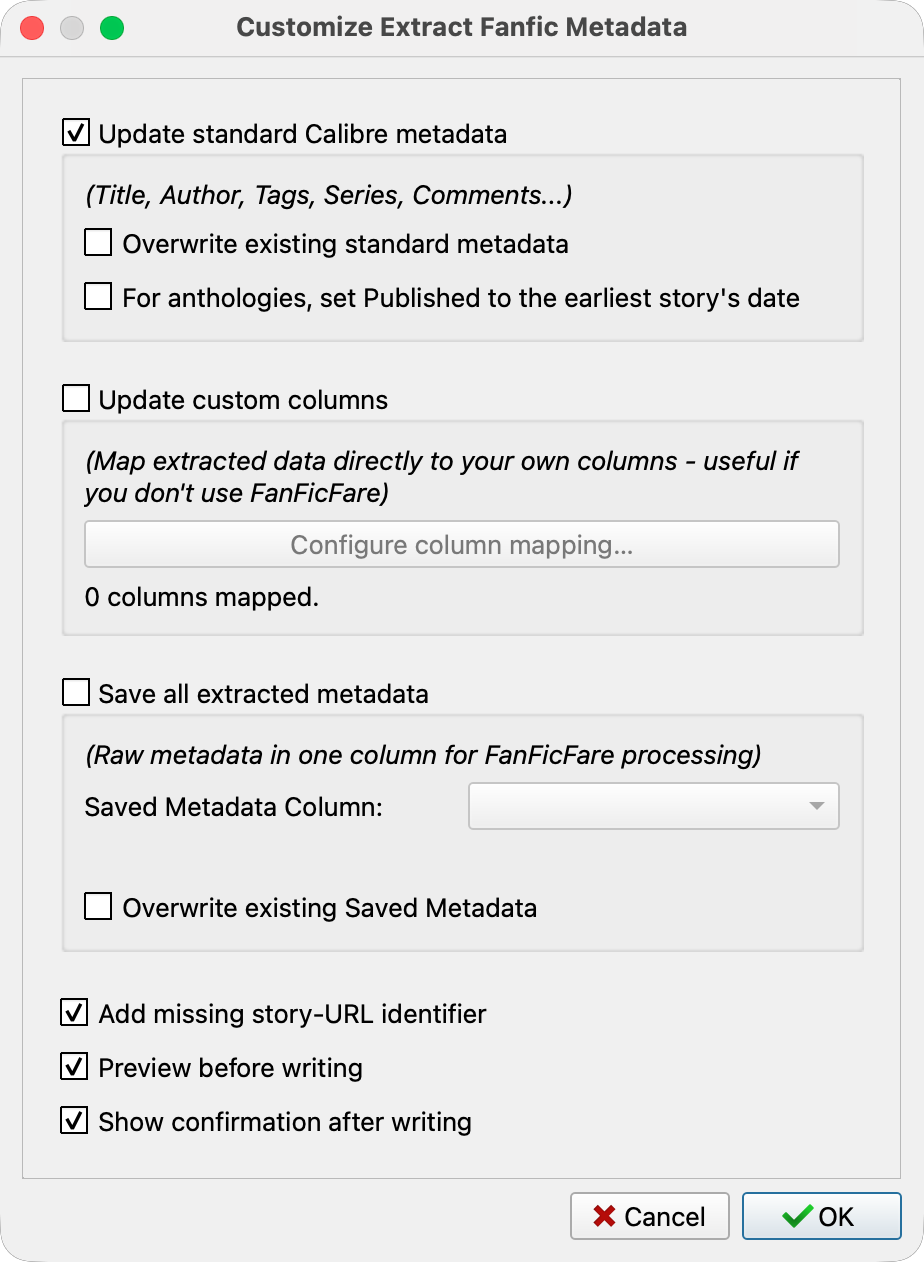
Anything already filled in is kept, including the title. Only empty fields, and an author listed as “Unknown”, are filled. If you want to replace what's there, such as a title that is really a file name, tick Overwrite existing standard metadata.
3. Try it on a few books
Back up your library before changing lots of books at once. Start with two or three.
- Select the books.
- Click Extract Metadata on the toolbar.
-
A preview lists your books. Click each one to see what was found, and what will be skipped because it’s already filled in. The box at the top sums up what will happen to that book.
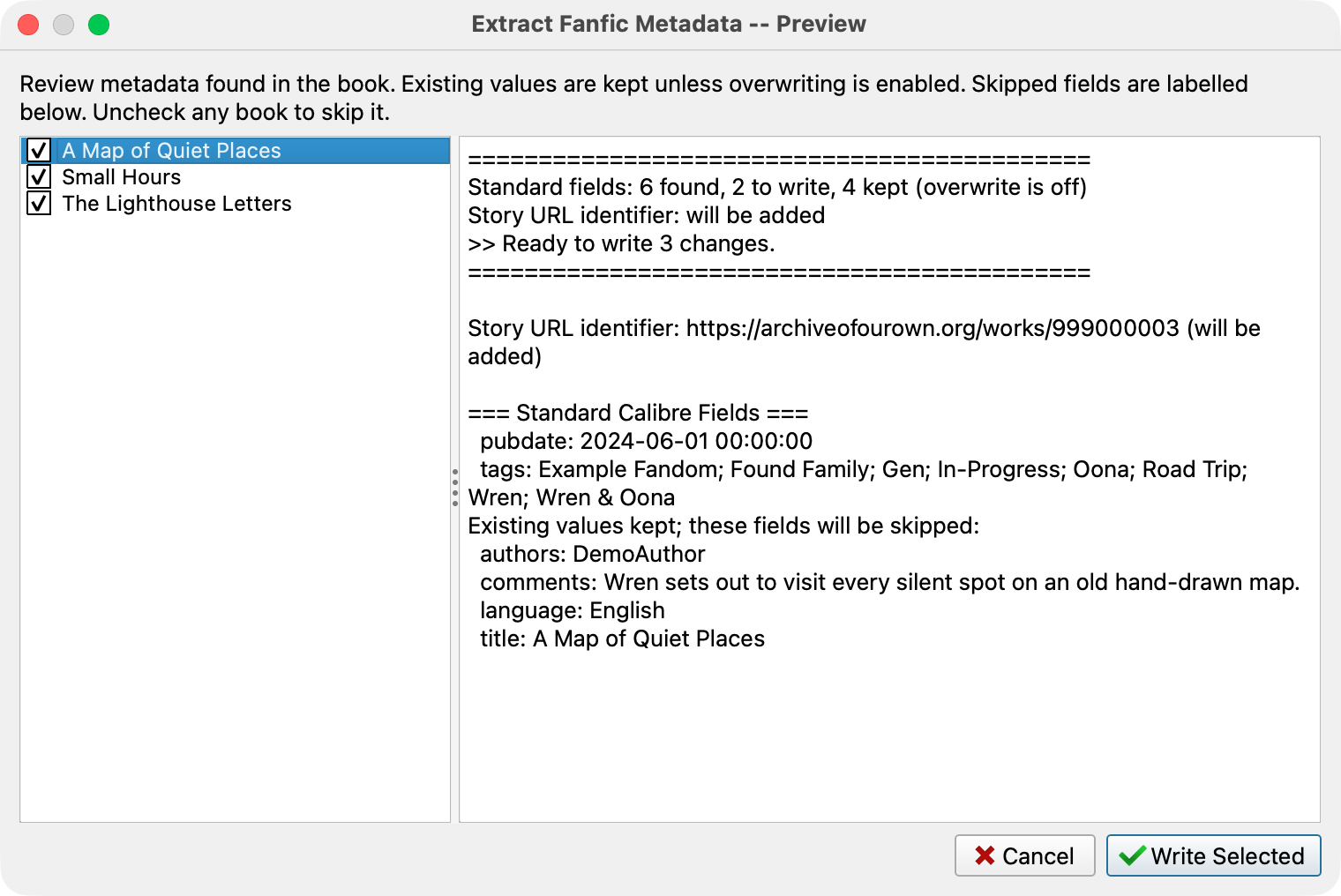
In this example the title, author, summary and language were already there, so they’re kept. The date, tags and story link will be added.
- Untick any book you want to leave alone.
- Click Write Selected. A short message tells you how many books were updated.
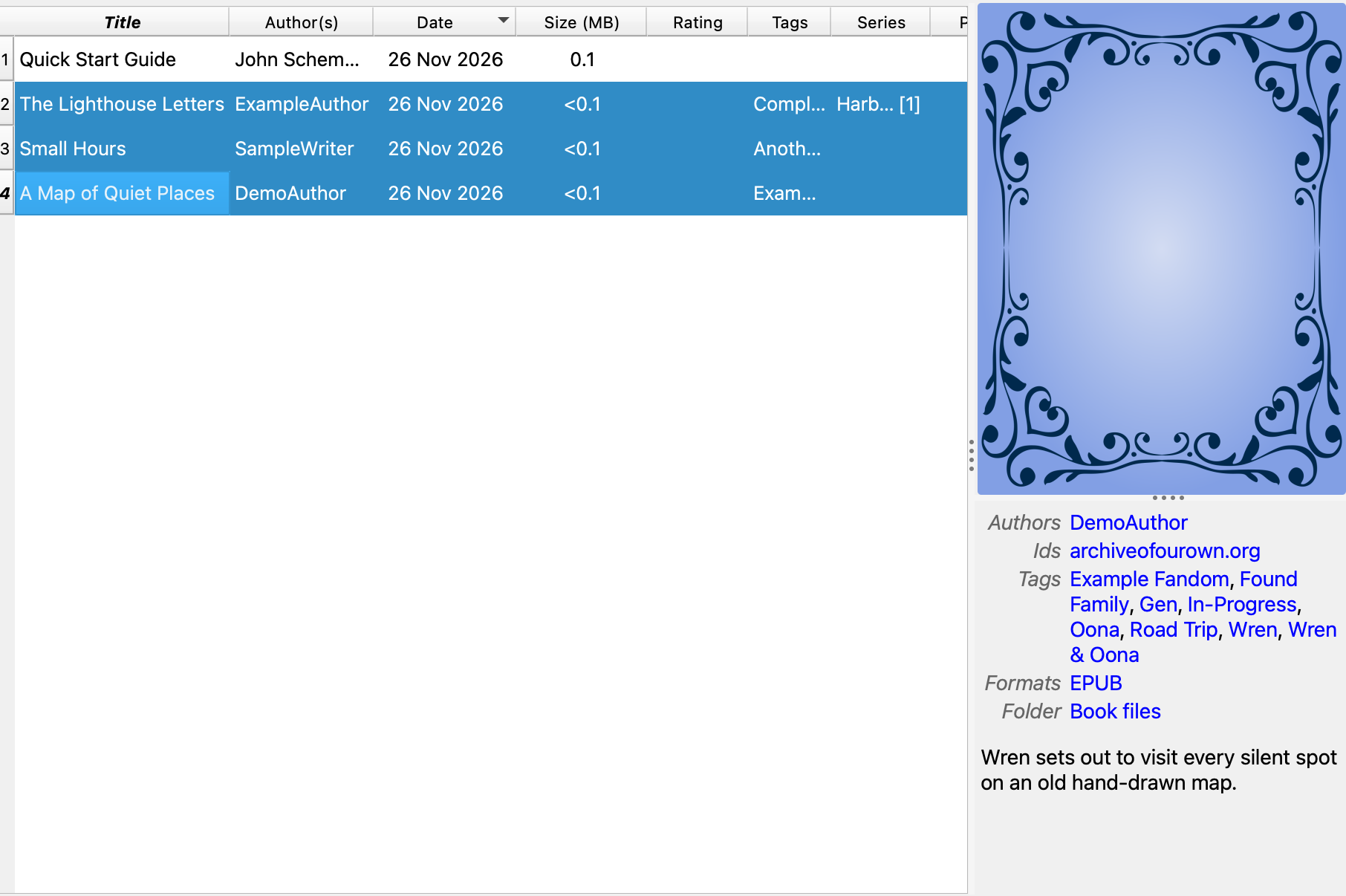
Nothing is changed until you click Write Selected. Afterwards, the new details are in your library:
Fill your own columns
If you have your own columns in Calibre, such as one for word count or fandom, the plugin can fill them.
-
If you don’t have the column yet, create it under Preferences → Add your own columns. Give it a lookup name (such as
words), a heading (such as Words) and a type. For a word count, choose Integers. For fandom, choose Comma separated text, like tags. Then restart Calibre.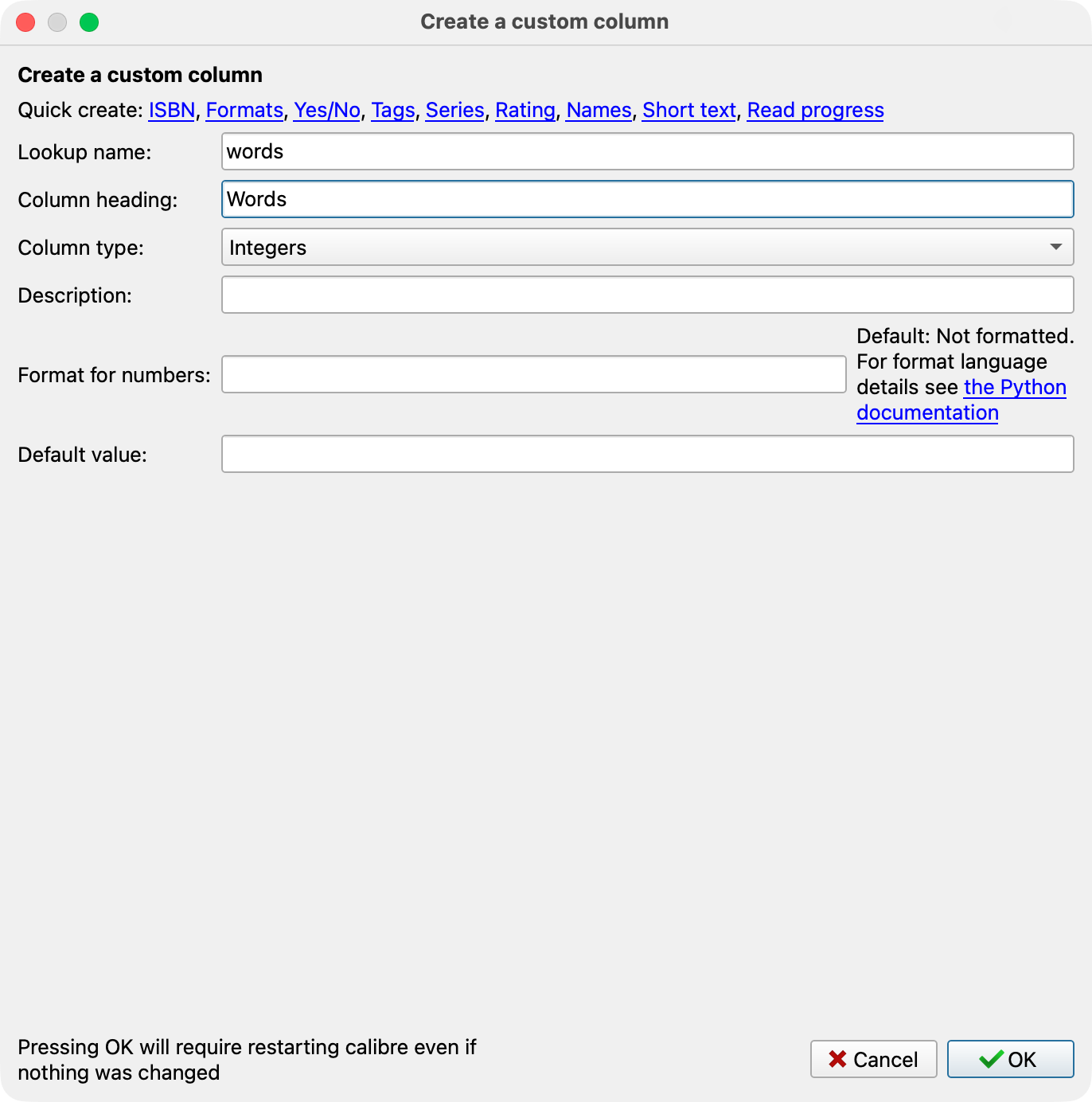
- In the plugin’s settings, tick Update custom columns.
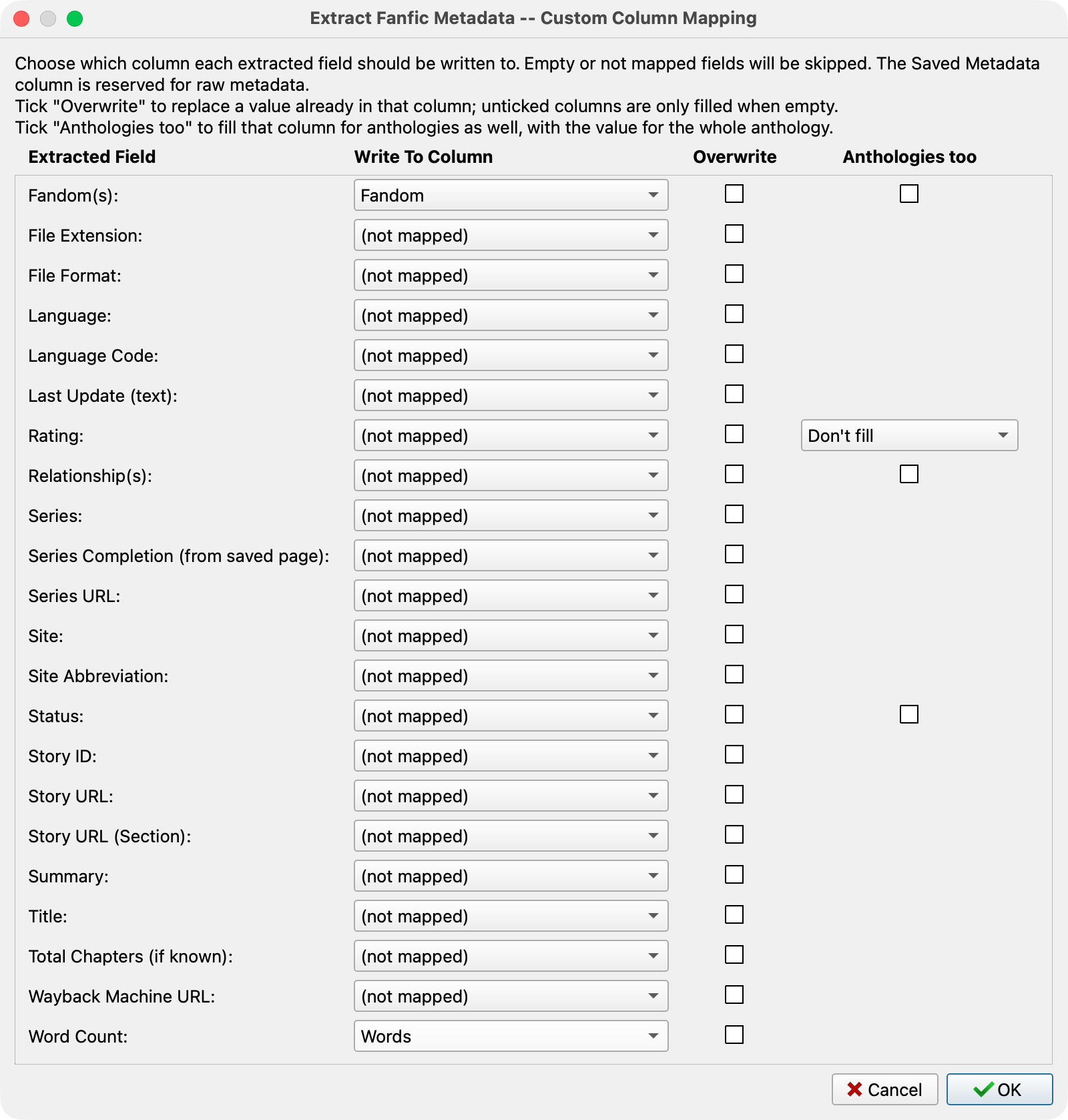
- Click Configure column mapping….
- Next to each detail you want, such as Word Count, pick your column.
-
Tick Overwrite only for columns you want replaced every time. Unticked columns are only filled when empty.
-
Click OK to close both windows, then select your books, click Extract Metadata and Write Selected.
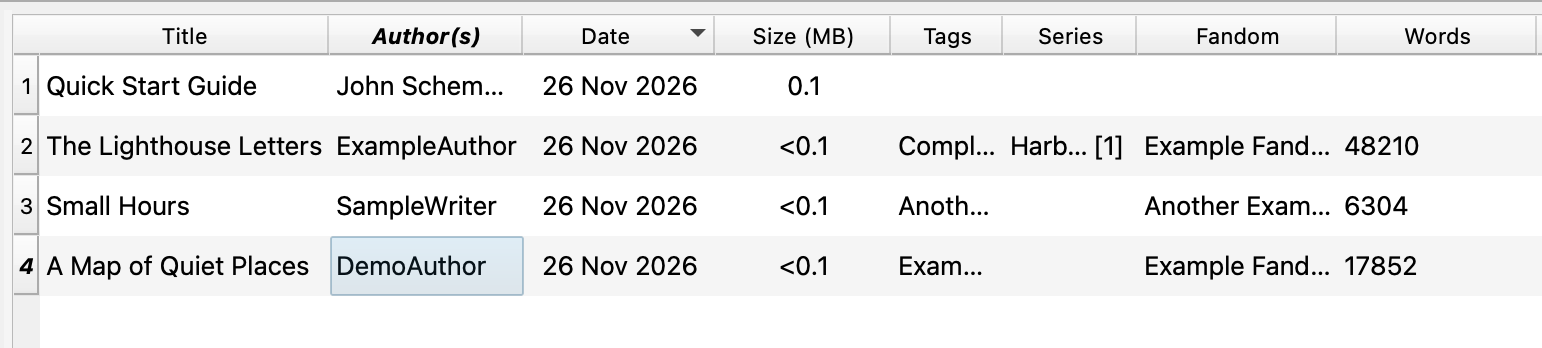
The full list of details you can use is on GitHub.
Use it with FanFicFare
If you’ve set up FanFicFare to tidy tags and fill columns your way, let it do that for these books too.
- You need a Long text column for FanFicFare’s Saved Metadata. FanFicFare’s own Saved Metadata Column setting must point to it.
- In this plugin’s settings, tick Save all extracted metadata and choose the same column.
- Select your books and run Extract Metadata.
- Then run FanFicFare’s Update Calibre Metadata from Saved Metadata Column.
This only works for books where a story link that FanFicFare supports was found. The preview tells you when one is skipped.
Something not working?
A field didn’t change. It probably already had something in it. The preview lists these. Tick Overwrite if you want it replaced.
Some details are missing. The plugin only uses what’s inside the file, and leaves the rest blank. It never guesses.
The book isn’t recognised. Not every layout can be read. Scanned PDFs and pages printed to PDF from a browser don’t work.
It’s a web page you saved yourself. Convert it to EPUB in Calibre first, then run the plugin.
“Choose a Long Text Saved Metadata column”. Untick Save all extracted metadata in the settings, or set up the column.
Word count or status looks out of date. They describe your saved copy, not the story online today.
Still stuck? Open an issue on GitHub. It’s looked after in spare time, so replies may be slow.
More
- Every setting and field, including anthologies
- What’s changed
The plugin is provided as it is, with limited support. This guide isn’t affiliated with AO3 or the Organization for Transformative Works.