Step 1: Basic covers
Install the plugin, import a preset, generate your first cover
By the end of this step you’ll have automatically generated covers appearing on every fic you download — no manual work per fic required.
1. Install Generate Cover
Generate Cover is a separate Calibre plugin. Install it from Calibre’s preferences:
Preferences → Plugins → Get new plugins, search for “Generate Cover”, install, and restart Calibre.
2. Import your starter preset
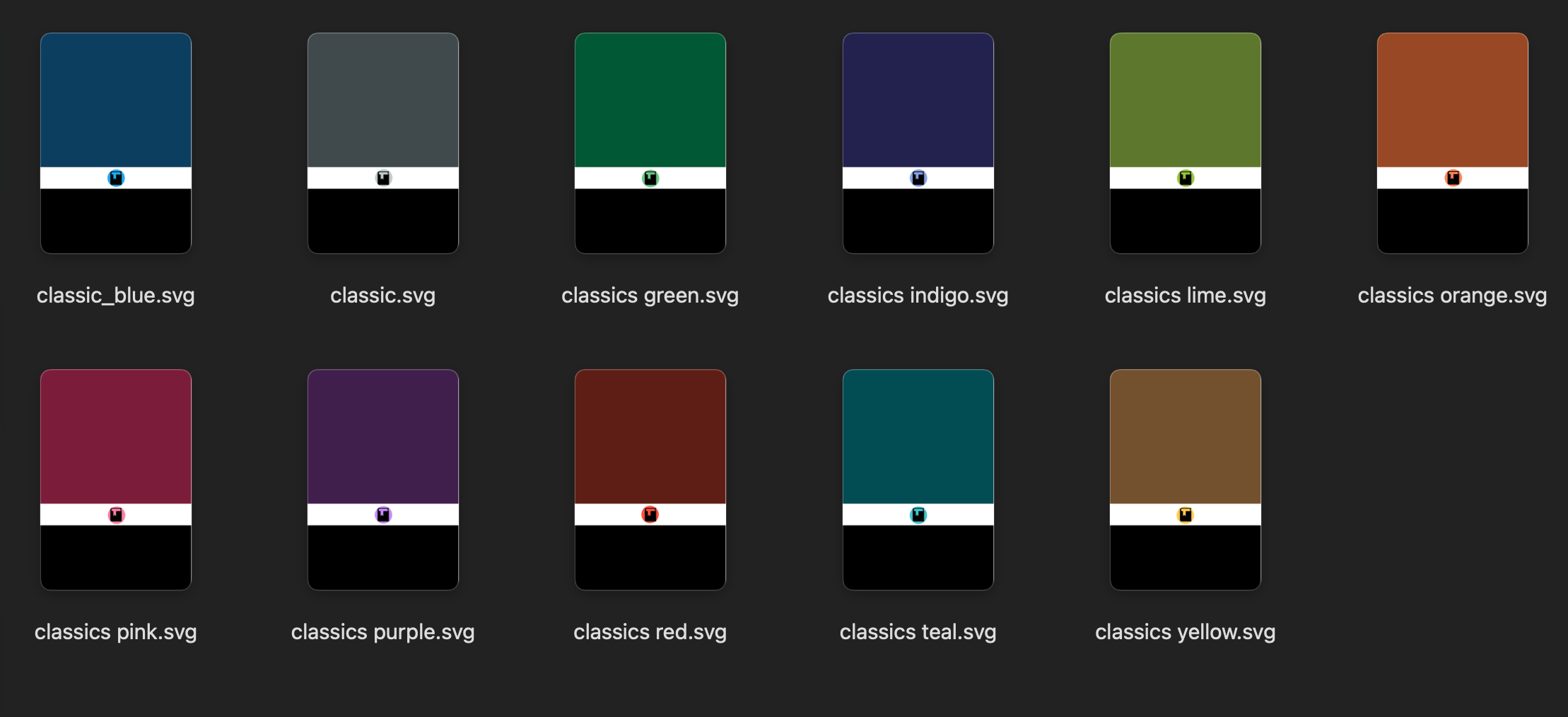
To get you started I have prepared a preset and alternate coloured images. The design is very loosely inspired in Penguin Classics. It’s meant to be a clean, simple design that prioritizes legibility above all. Feel free to use the images as you wish.
Download the files
You need two things from the code/cover-images/ folder in this repo (also linked from the main nav on this tutorial):
classics-preset.zip— the preset settings file- Optional: Other colour images — eight solid color options are available. The preset comes with a basic gray one, but you can swap it any time. Images are in the
code/cover-images/folder.
Import the preset
Open Generate Cover from Calibre’s toolbar. In the Settings tab:
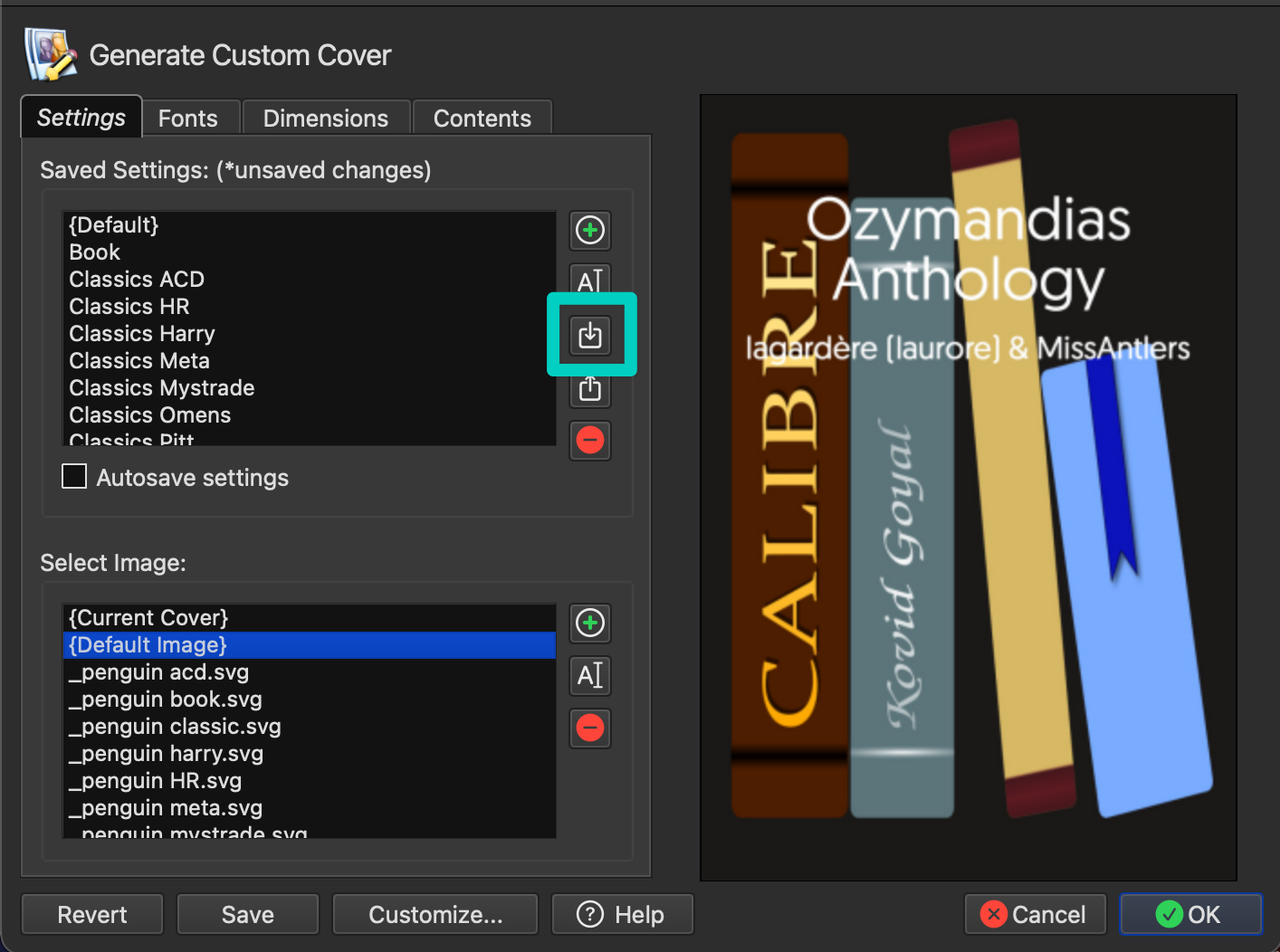
- Click the import button (the arrow pointing inward) next to Saved Settings
- Select
classics-preset.zip - You will be prompted for a name, you can keep Classics or change it to anything you want.
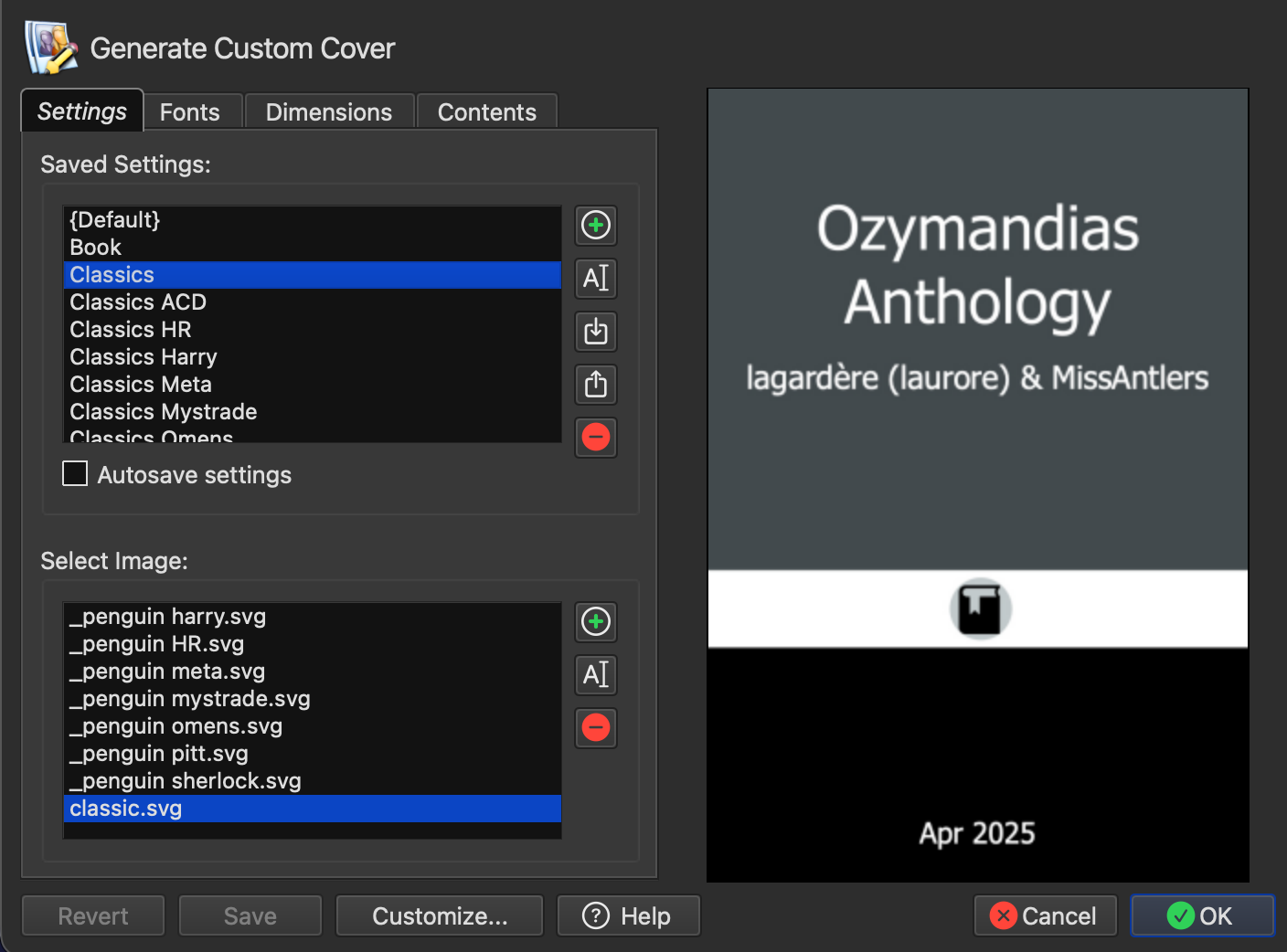
The preset appears in the Saved Settings list as Classics. The preview on the right shows you what a cover will look like with your chosen background.
If you want to use other colours, load the images on the Select Image pane and select.
What’s in the preset
Here’s a brief tour of the four tabs so you know what you’re working with.
Fonts
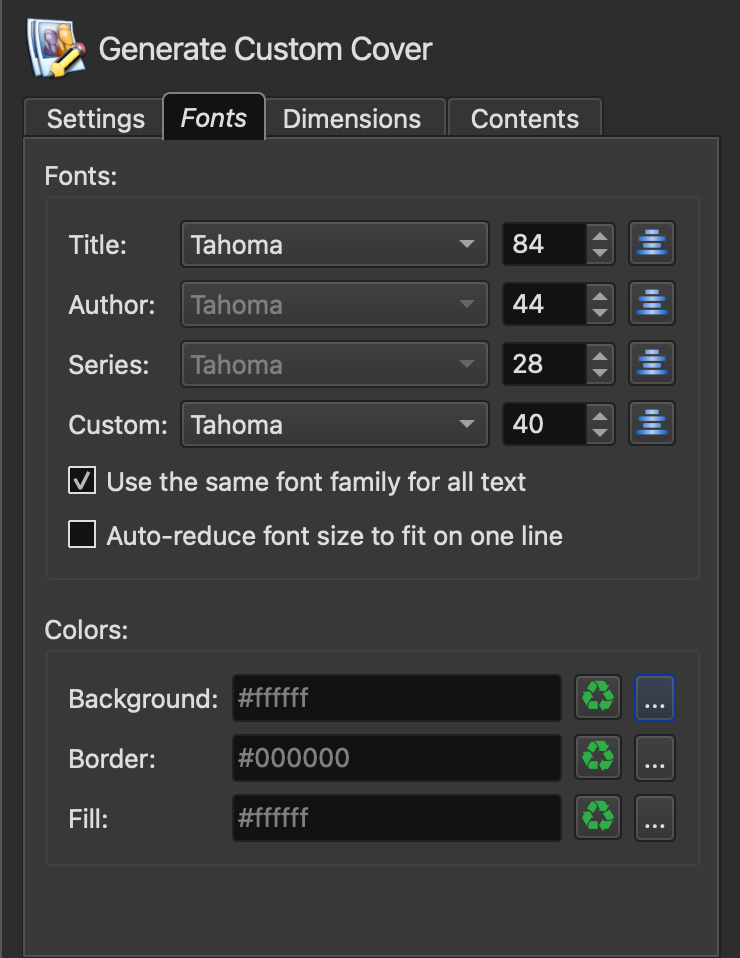
This preset uses Tahoma, just for wide availability. Text is white. The Use the same font family for all text option is checked, so if you want to change the typeface you only need to change it in one place. You can customize this any way you want, but be aware: there seems to be a bug and not all fonts will show un in the menu or work. Test your way forward.
Dimensions
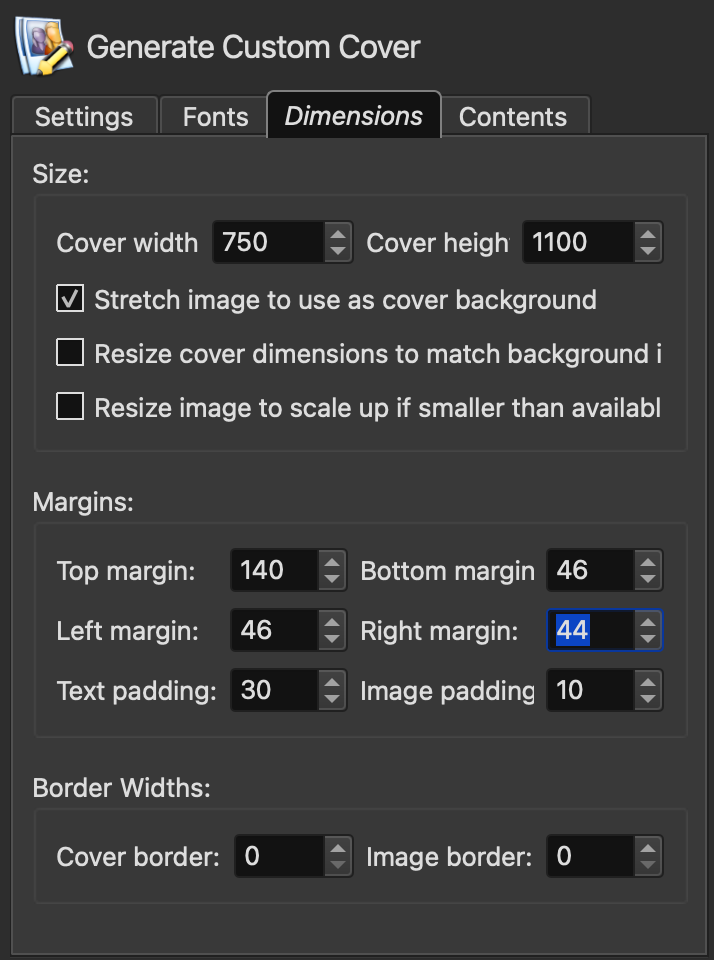
Covers are generated at 750 × 1100 pixels, a standard ebook portrait ratio. The background SVG is stretched to fill the cover area. You don’t need to change anything here. But you can tweak the margins if needed.
Contents
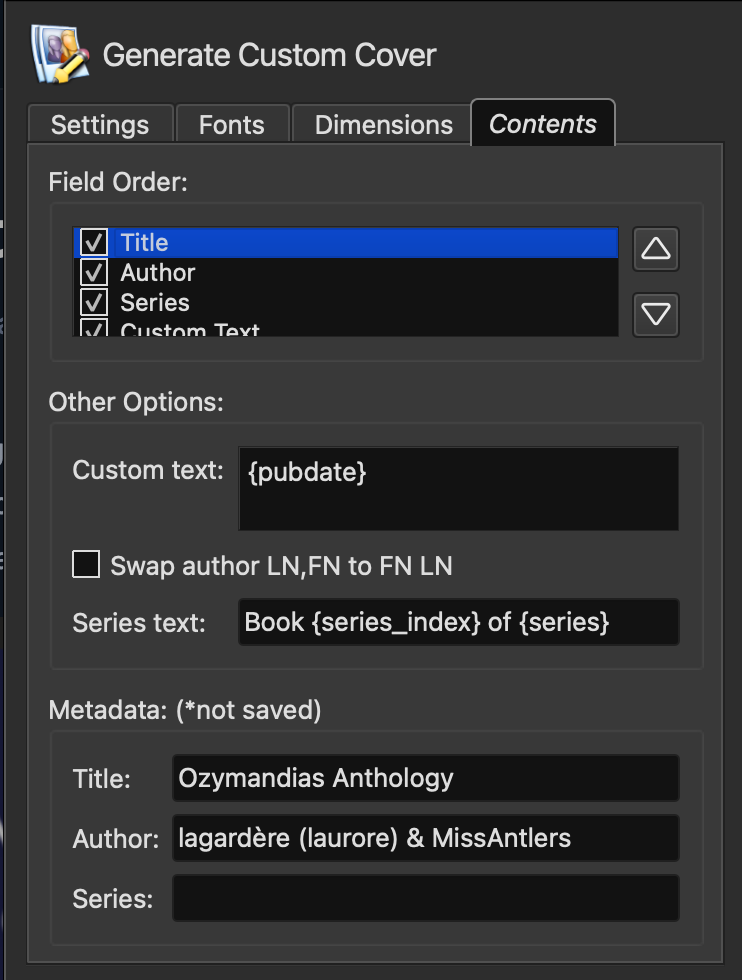
Four elements are displayed in this order: title, author, series (only appears if the fic is part of a series),and custom text. The custom text field is set to {pubdate}, which pulls the publication date.
This is the minimum useful cover: you know what the fic is, who wrote it, when it was published, and whether it’s part of a series. It all uses standard data that every fic already has. In the next parts of the tutorial we’ll see how to get in even more useful data into covers by using custom columns and fanficfare automation.
3. Configure FFF to use the preset
In Calibre, open the FanFicFare plugin settings and go to the Calibre Cover tab.
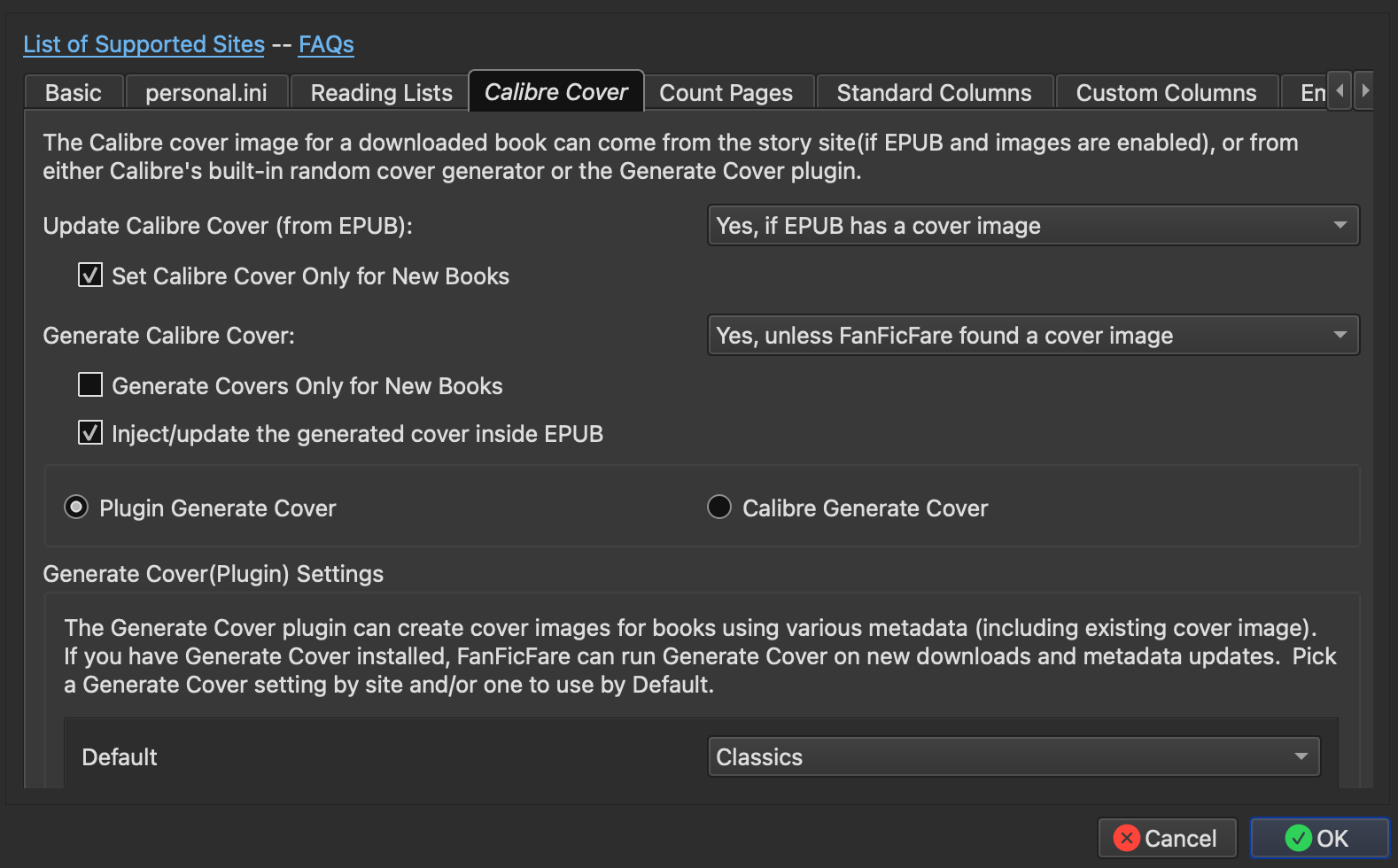
Two settings to check:
- Generate Calibre Cover: set to “Yes, unless FanFicFare found a cover image”
- Select Plugin Generate Cover (not “Calibre Generate Cover”)
In the table below, find the Default row and select Classics from the dropdown.
Click OK.
4. Test it
Download any fic from AO3. When it completes, you should see a generated cover in the book details panel — your chosen color background, title, author, publication date.
Check that Generate Cover is installed and that the Default row in the Calibre Cover tab is set to Classics rather than {Default}. If it was already set, selecting the book and clicking on "Generate cover" manually to confirm the plugin is working.
What’s next
In step 2, you’ll set up different cover templates per fandom and have FFF apply them automatically when downloading.