4. Generate covers with your metadata
Put saved values on a cover and update existing books
You now have FanFicFare metadata in Calibre columns. This step puts a few of those values on your cover, explains when to generate a cover manually, and shows how to refresh existing books after changing your setup.
Open the cover text settings
- Open Generate Cover from Calibre’s toolbar.
- Select the preset you want to change.
- Open the Contents tab.
- Find Custom text. This is where every example on this page goes.
The starter preset uses {pubdate} in this box. You can replace it, keep it on another line, or combine it with saved metadata.
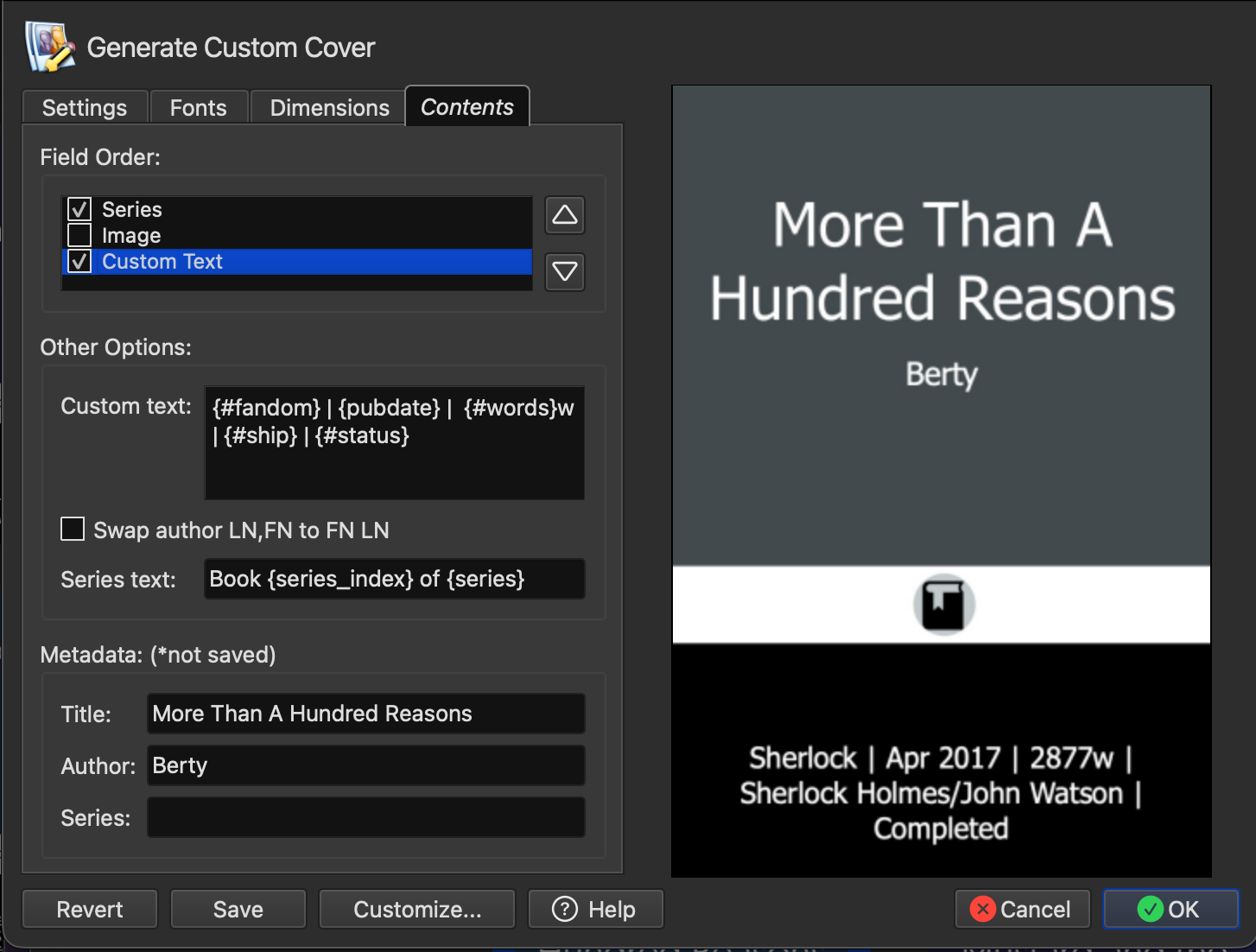
Put saved values on a cover
The names inside braces are Calibre lookup names. Start with a simple layout such as:
{#ship}
{#words} · {#status}
Each line becomes a separate line on the cover. The middle dot is ordinary visible text, so you can remove it, change the order, or use a different separator. This first version may show long relationship names or full word counts; the next recipes create shorter cover-ready values.
Generate a cover manually
Use manual generation when you want to test a changed preset or refresh the cover of a selected book right away:
- Select the book in Calibre.
- Open Generate Cover from Calibre’s toolbar.
- Select the saved preset you want to use.
- Generate the cover and check the result in the book details panel.
If you changed the design or Custom text, return to Generate Cover’s Settings tab and save the preset before generating the test cover.
Let FanFicFare generate covers automatically
In Step 1, you selected Classics as FanFicFare’s default Generate Cover preset. FanFicFare uses that saved preset whenever it downloads or updates a fic that needs a generated cover. This is the normal way to keep covers current; use manual generation for a quick test or one-off refresh.
An automatic cover uses the metadata already saved for that book. If you add a column, change a mapping, or alter a calculated-column template, refresh the book's metadata first. Then run a FanFicFare update or generate the cover manually to see the changed value.
As you add more metadata, the Choose a cover recipes can tell FanFicFare to select a different preset for a fandom, ship, or AO3 tag.
Reuse saved metadata for existing books
If you created the optional Saved metadata column in the previous step and it has already been filled for a book, you can use it to populate new mappings without visiting AO3 again:
- Select one or more books in Calibre.
- Open FanFicFare → Update Existing FanFiction Books.
- Choose Update Calibre Metadata from Saved Metadata Column.
- Check the newly mapped columns, then regenerate the cover manually if you want to see the change immediately.
Saved metadata contains only what FanFicFare had collected when it last processed that book. Use Update Calibre Metadata from Website instead when you need current source-site metadata.
Next steps
The following recipes turn full saved values into compact cover text: word and chapter count, status, ships, and genres. Once you have the values you want, Advanced display options shows how to hide empty separators, add labels, and build more polished layouts.