3. Add AO3 metadata
Understand, save, and reuse information from AO3
Metadata is information about a story: its title, author, tags, relationships, word count, status, and so on. FanFicFare reads this information from AO3 and writes it into your Calibre library.
What FanFicFare saves automatically
Calibre already has standard columns for common book information. FanFicFare fills these without requiring you to create anything:
- Title and Author(s);
- Tags, assembled from metadata such as fandoms, relationships, characters, warnings, and status;
- Comments, which contain the story summary;
- Series and series number, when present;
- Publisher, published date, and the story URL identifier.
You can search these values, filter your library with them, and place many of them directly on a cover. The Standard Columns tab in FanFicFare’s settings controls whether they are updated only for new books or during later updates too.
What custom columns add
A custom column is an extra place in your Calibre library for information that does not have a suitable standard column. For example, you can keep relationships in #ship, status in #status, and word count in #words instead of mixing everything together in Tags.
There are two kinds of custom column in this guide. A saved-metadata column receives a value from FanFicFare, such as AO3’s word count. A calculated column works out a new value from saved columns, such as turning 34,291 words into 34k. Calculated columns do not download anything and should not be mapped in FanFicFare.
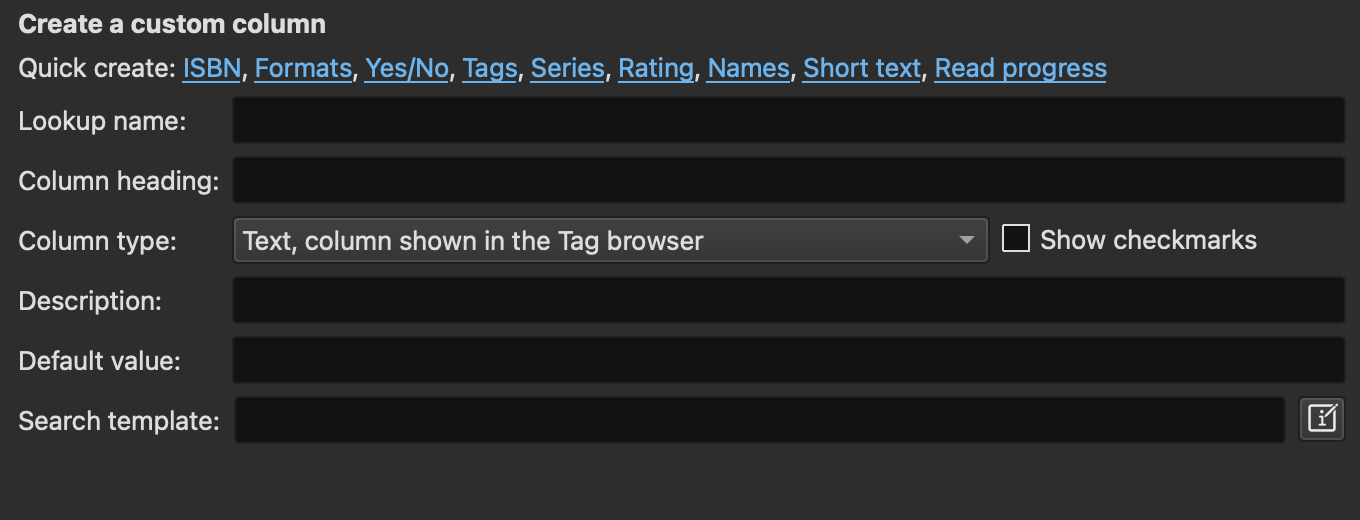
Each column has a reader-facing heading and a machine-facing lookup name. Enter the lookup name without # when you create the column: words, for example. Calibre then displays and stores it as #words. Use #words in Calibre templates and Generate Cover fields such as {#words}. FanFicFare source metadata is different: ${category} and ${freeformtags} are values it has read from the site, not names of your Calibre columns.
Once metadata has its own column, you can:
- see it in the book list;
- search, sort, and filter with it;
- display it on a generated cover;
- use it to decide which cover preset FanFicFare selects; or
- use it as the input for a calculated column.
A calculated column is a custom column whose value is produced from other columns. For example, the later #short_words column reads #words and turns 34,291 into 34k. The optional pages after this step explain each calculated column and provide the code it needs.
Create and test a calculated column
In Preferences → Add your own columns, click Add custom column and choose Column built from other columns as the type. Calibre then shows a Template box: this is where calculated-column code goes. The editor button beside it opens a larger window with a preview.
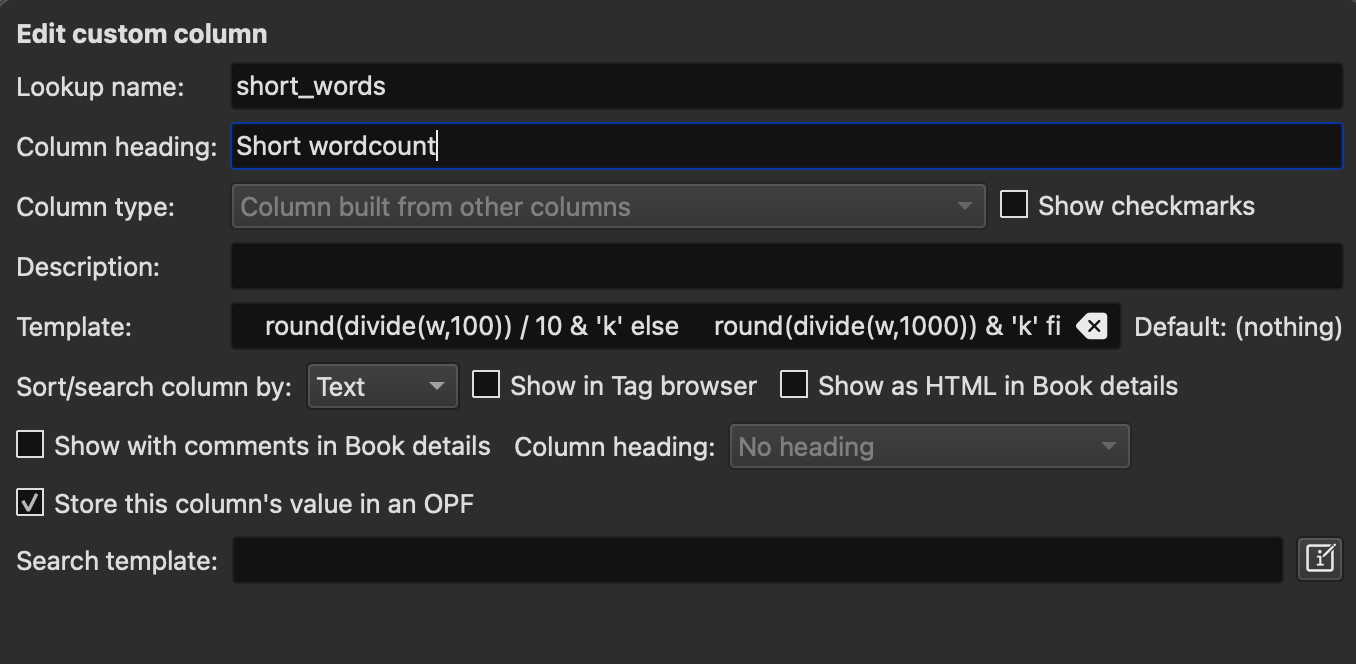
It is helpful to keep a plain-text copy of each template outside Calibre, then paste it into this box when you make changes. You can test code without repeatedly restarting Calibre from Preferences → Template functions; paste in the template and Calibre will show errors before you save it as a column.
Everything in this step is configured through Calibre and the FanFicFare settings. You do not need to edit personal.ini.
1. Create custom columns in Calibre
Open Preferences → Add your own columns. Click Add custom column at the bottom left.
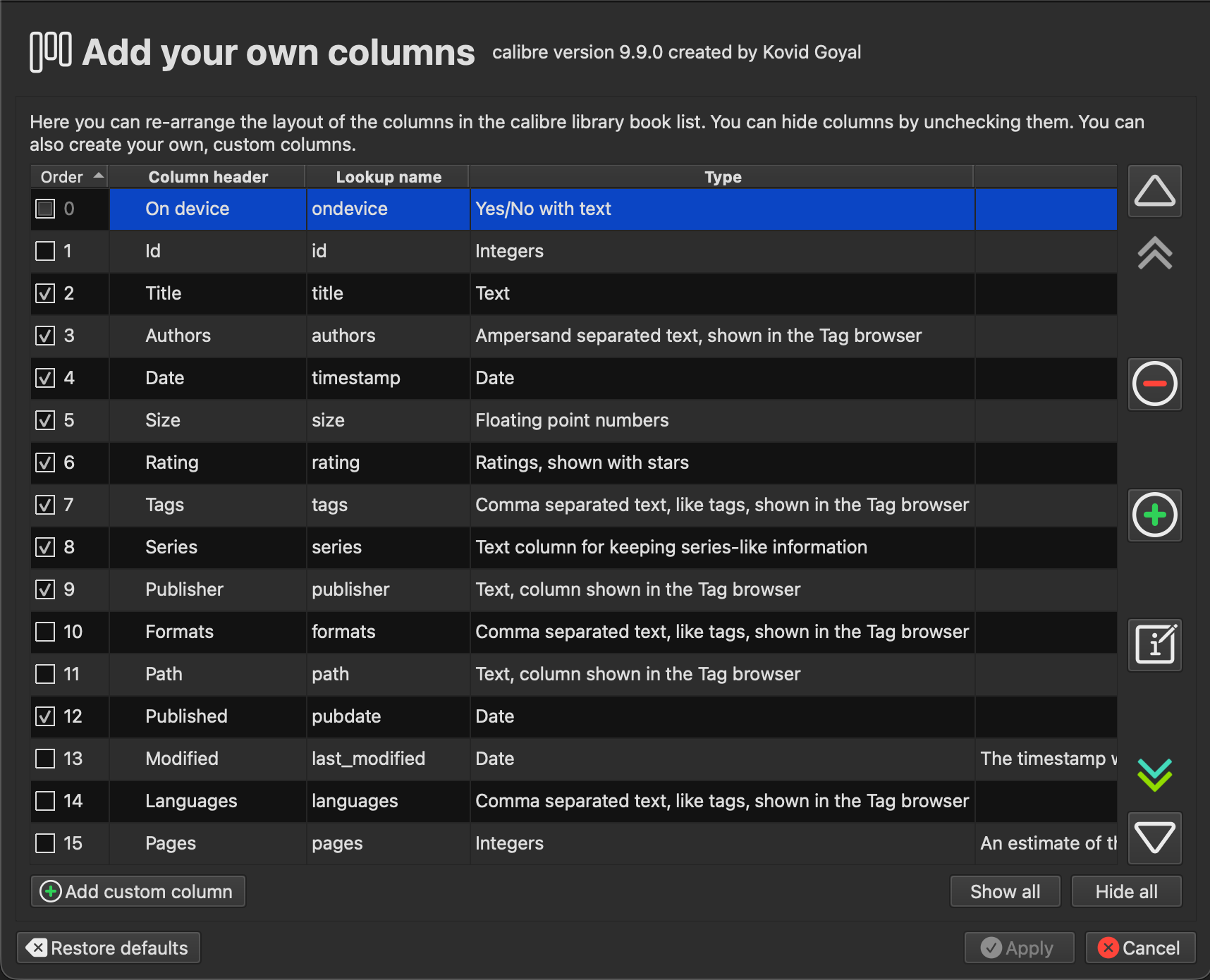
For each column you want, fill in the lookup name, a column heading, and the column type. Use comma separated text, like tags when a story can have several values that you want to browse individually, such as fandoms or relationships. Use Text for one short value, Integers for whole numbers, and Date for dates.
Basic columns
Create these now. They support the main cover-content recipes and the later fandom and ship choices:
| Column heading | Lookup name | Column type |
|---|---|---|
| Fandom | fandom | Comma separated text, like tags, shown in the Tag browser |
| Relationship/s | ship | Comma separated text, like tags, shown in the Tag browser |
| Status | status | Text, column shown in the Tag browser |
| Words | words | Integers |
| Chapters | chapters | Integers |
Extra columns
Create these only if you want their information or plan to follow the recipe named below:
| Column heading | Lookup name | Column type | Used by |
|---|---|---|---|
| Updated | updated | Date | Chapter-aware and dormant status |
| Content rating | contentrating | Text, column shown in the Tag browser | Optional information for your library |
The Updated column is needed only for Chapter-aware and dormant status.
Click Apply and restart Calibre when prompted.
2. Tell FanFicFare what belongs in each column
Open the FanFicFare plugin settings and go to the Custom Columns tab. Your new columns will appear in the list on the left. For each one, select the corresponding AO3 metadata field from the dropdown.
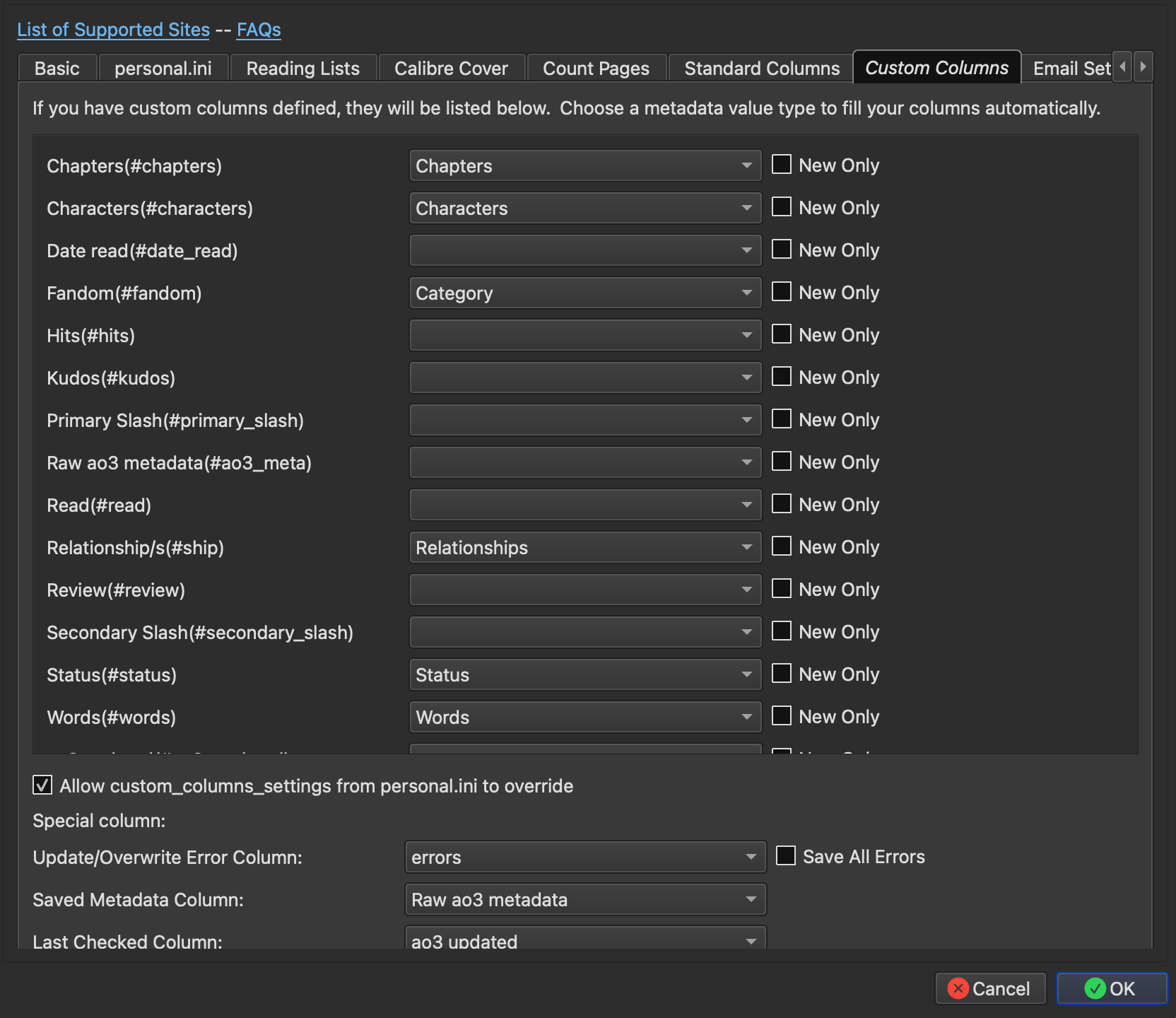
Basic columns
| Column | Map to |
|---|---|
| Fandom(#fandom) | Category |
| Relationship/s(#ship) | Relationships |
| Status(#status) | Status |
| Words(#words) | Words |
| Chapters(#chapters) | Chapters |
Extra columns
| Column | Map to |
|---|---|
| Updated(#updated) | Updated |
| content rating(#contentrating) | Rating |
The New Only checkbox next to each column controls whether FFF updates it on metadata refreshes or only populates it on first download. Leave it unchecked for these fields — you want them to stay current.
At the bottom of the tab, make sure Allow custom_columns_settings from personal.ini to override is checked. You’ll need this in later steps.
Refresh metadata for books you already have
New columns fill automatically when you download a new fic. To fill them for books already in your library, select one or more books, open the FanFicFare menu, and choose Update Existing FanFiction Books. In the update window, choose Update Calibre Metadata from Website and run the update. FanFicFare reads the current site metadata and fills every mapped column whose New Only box is unchecked.
If you set up the optional Saved metadata column below and it already contains data for the selected books, choose Update Calibre Metadata from Saved Metadata Column instead. That reuses the saved copy without contacting AO3, but it cannot supply metadata that was not saved at the time.
Optional: save raw metadata
FanFicFare can keep a copy of all the metadata it extracted in one long-text column. If you later add a custom column or change a mapping, you can use Update Calibre Metadata from Saved Metadata Column instead of requesting the same metadata from AO3 again.
- In Preferences → Add your own columns, create a column named Saved metadata with lookup name
fff_saved_metadata. - Choose Long text, like comments as its type and Plain text as its interpretation.
- Restart Calibre, then open FanFicFare → Configure FanFicFare → Custom Columns.
- At Saved Metadata Column, select the new column.
This is a backup of metadata, not of the story chapters or images. It begins filling when FanFicFare next downloads or updates each book, and it contains only the information available at that time. Keep your EPUB files backed up separately.
The next step shows how to use this saved copy to populate newly added columns and regenerate covers without connecting to AO3 again.