2. Install FanFicFare
Add the FanFicFare plugin to Calibre
Calibre can be extended with plugins: small add-ons that give it new abilities. FanFicFare is a plugin. It lets Calibre read a story from AO3 (and many other sites) and turn it into a book in your library.
You install it from inside Calibre, in a few clicks.
The next step uses a feature that needs Calibre 9.16 or newer. You can see your version at the bottom of the Calibre window, where it says "calibre 9.18 created by Kovid Goyal" or similar. It's also shown at the top of the Plugins page you'll open in a moment. If yours is older, update Calibre from calibre-ebook.com before you continue.
1. Open Preferences
On a Mac, open the calibre menu at the top of the screen and choose Preferences…. On Windows, click Preferences in the toolbar.
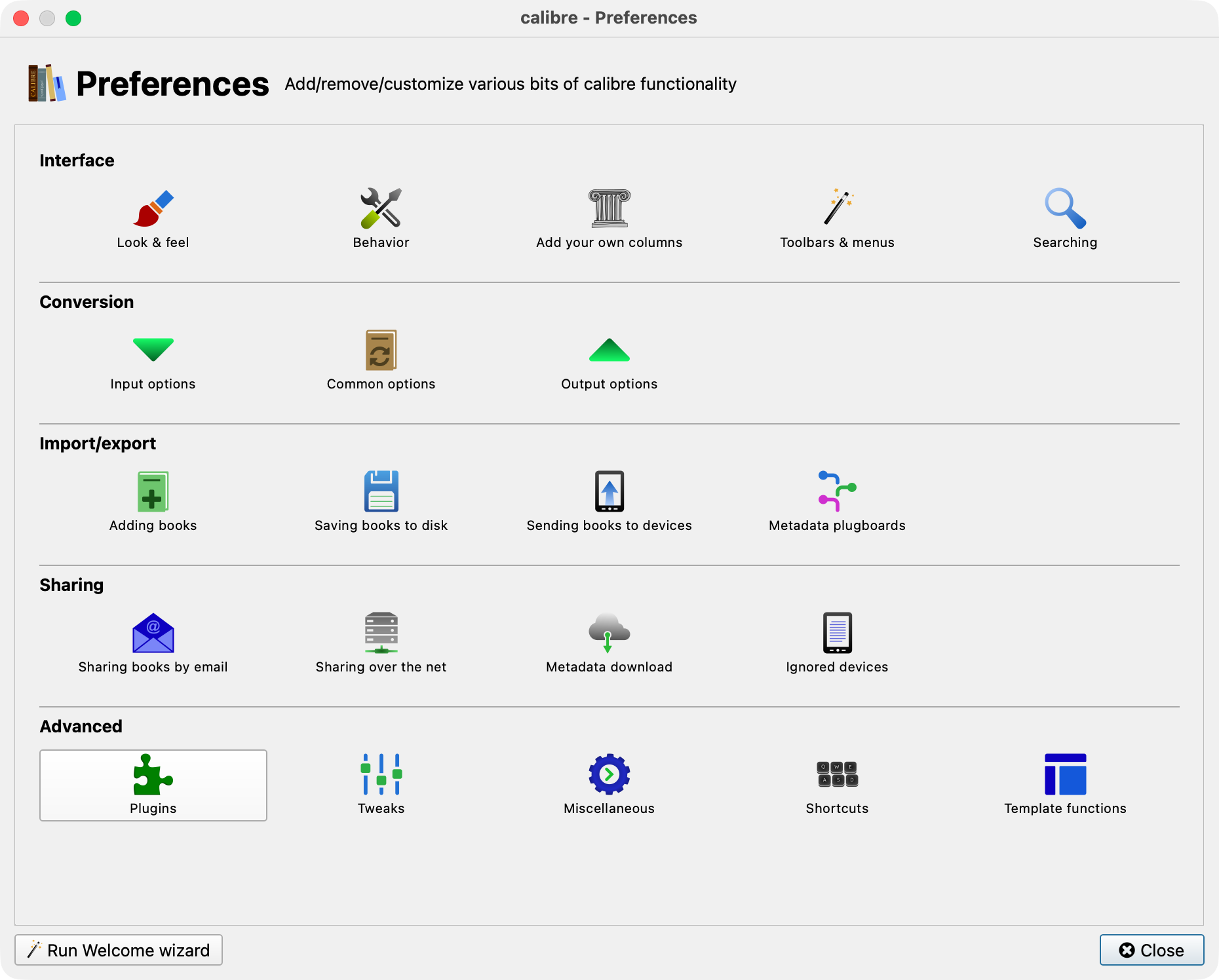
The Preferences window opens, with its settings grouped by topic. At the bottom, in the Advanced section, click Plugins (the green puzzle piece).
2. Find the plugin
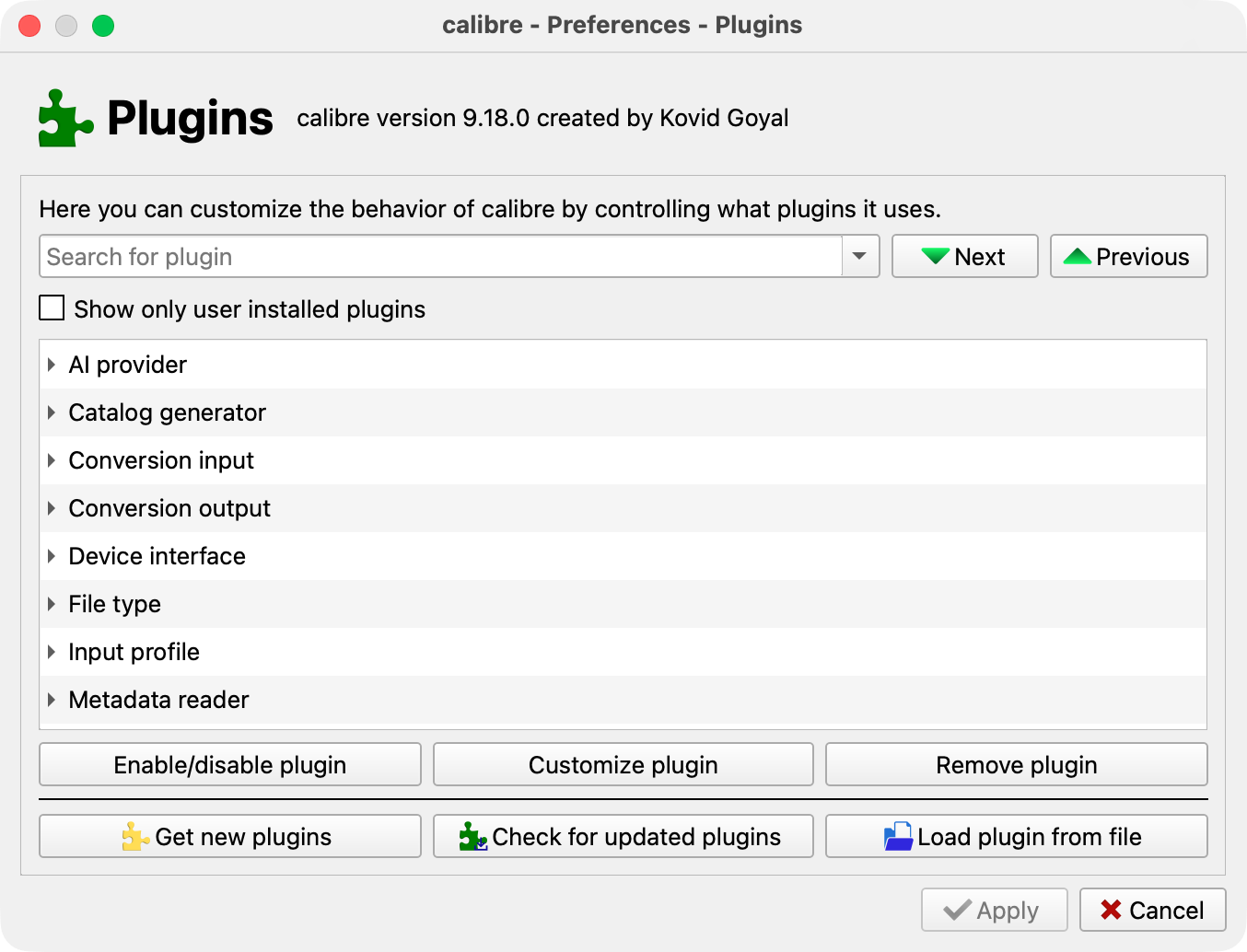
The Plugins page opens. Click Get new plugins at the bottom left.
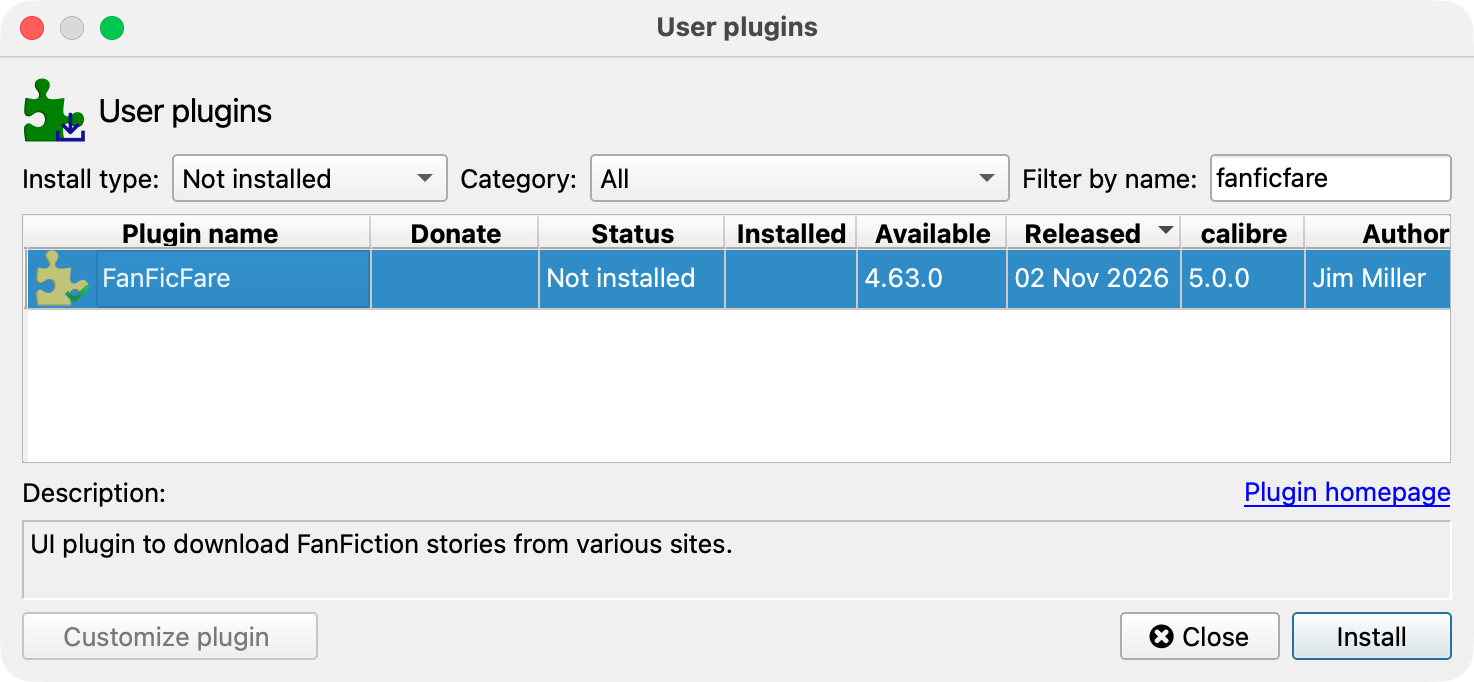
A list of available plugins opens. Type FanFicFare into the Filter by name box, select FanFicFare in the list, and click Install.
3. Answer the security question
Calibre asks whether you’re sure you want to install a plugin.
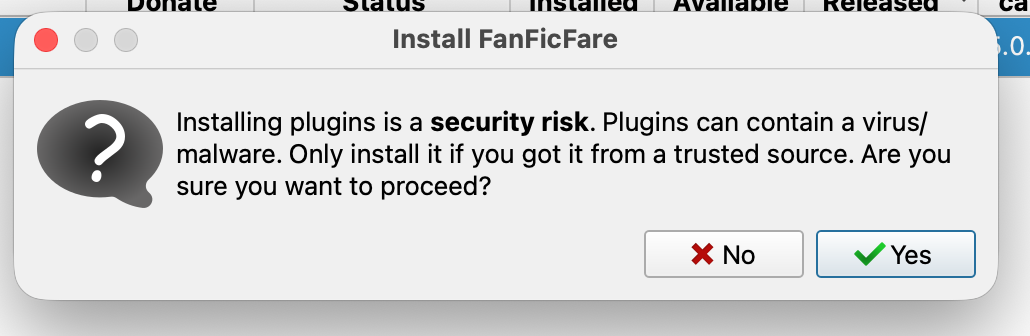
This message appears for every plugin, not only this one. A plugin is a small program that runs inside Calibre, so Calibre asks you to install only ones you trust. FanFicFare is free and open source, it is developed in public, and you’re getting it from Calibre’s own plugin list. Click Yes.
As a habit for later: only install plugins you’ve heard good things about.
4. Put its button on the toolbar
Calibre asks where to show FanFicFare’s button.
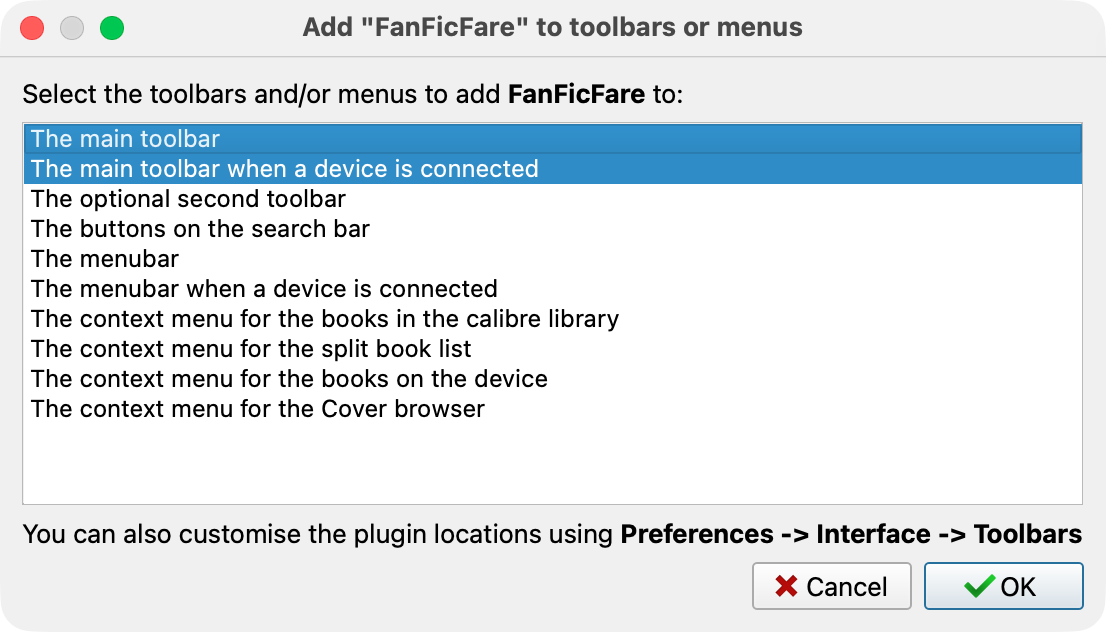
Two choices are already selected: The main toolbar and The main toolbar when a device is connected. Leave them as they are and click OK.
5. Restart Calibre
Calibre tells you the plugin was installed and that it may need a restart.
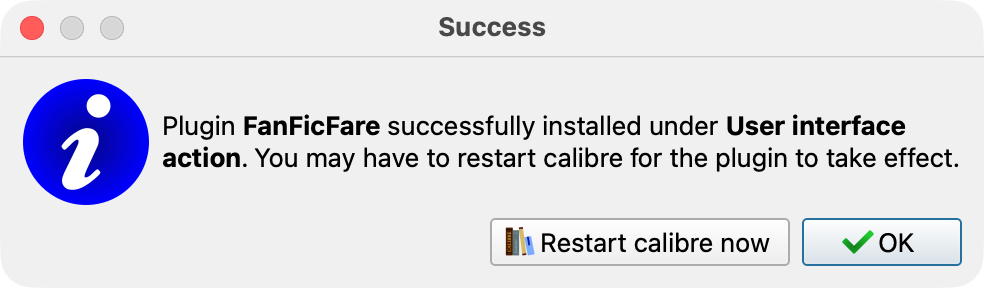
Click Restart calibre now. When Calibre comes back, the FanFicFare button is at the far right end of the toolbar.
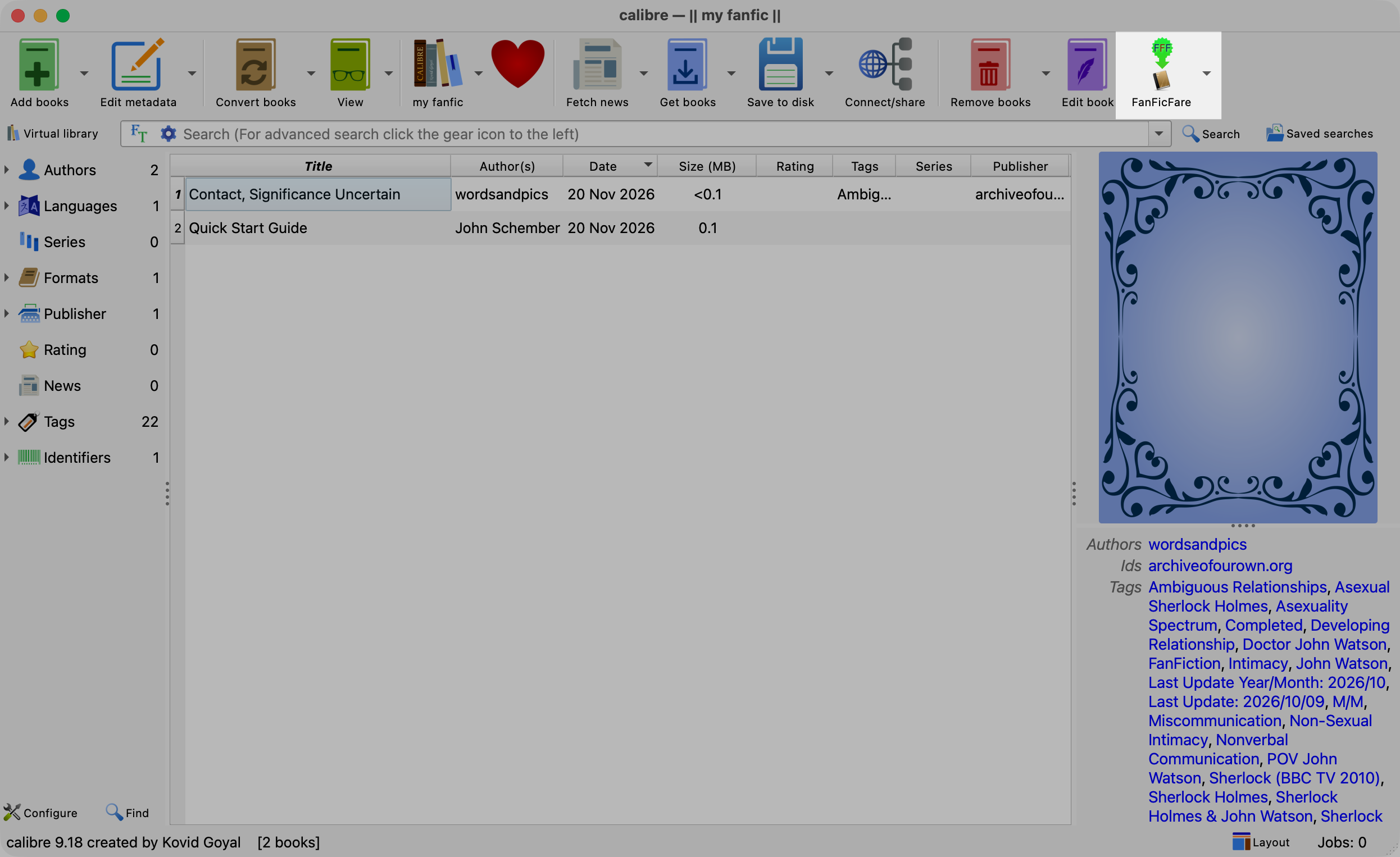
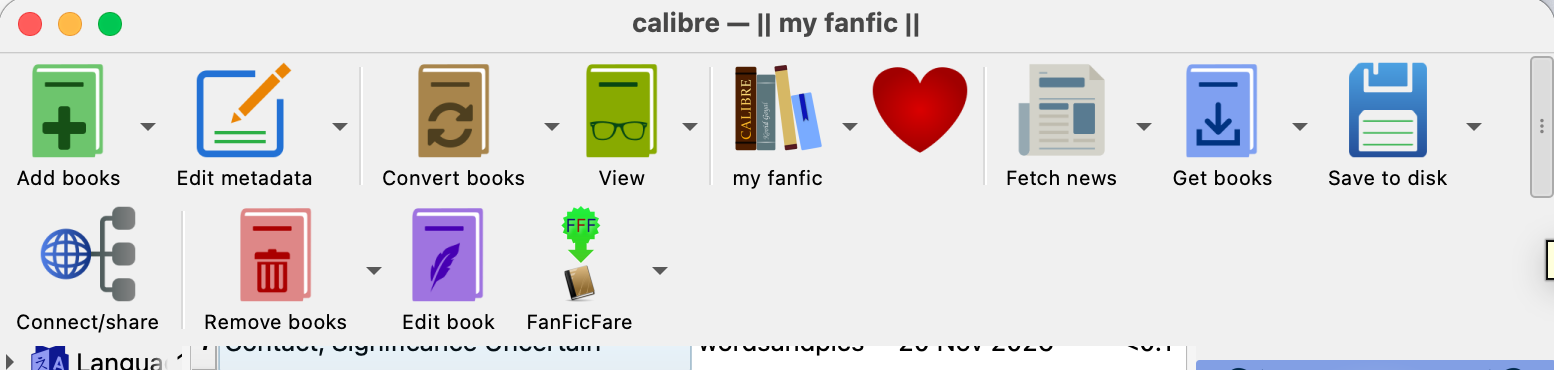
If your Calibre window is narrow, the buttons at the end of the toolbar don't fit, and a small ⋮ (three dots) appears at the right edge. Click the dots and the hidden buttons appear in a second row, including FanFicFare. Or make the window wider and everything fits on one row.
Something not working?
- FanFicFare isn’t in the list: check that you’re connected to the internet, then check that the Filter by name box contains only
FanFicFare. - Calibre says the plugin needs a newer version of Calibre: update Calibre from calibre-ebook.com and try again.
Next
FanFicFare is installed, but it needs a few settings before it will download from AO3. That’s the next step, and it’s quick.