3. Set up FanFicFare
One line of settings and one tick-box, so downloads from AO3 work smoothly
FanFicFare works with its standard settings for many sites, but AO3 sometimes turns away automatic downloads. In this step you’ll make two small changes that make downloads from AO3 much more reliable and easier to use: one line in FanFicFare’s settings file, and one tick-box.
Two more changes are optional. Skip them for now if you don’t need them.
This guide uses AO3 for all its examples. FanFicFare also works with many other sites, such as FanFiction.net and Royal Road, and the steps are very similar. Some of those sites need extra settings or a few tweaks, which are not covered here. FanFicFare's list of supported sites shows what it can download from.
1. Open the settings file
FanFicFare keeps its settings in a plain-text list called personal.ini. You edit it from inside Calibre, so you never need to look for a file on your computer.
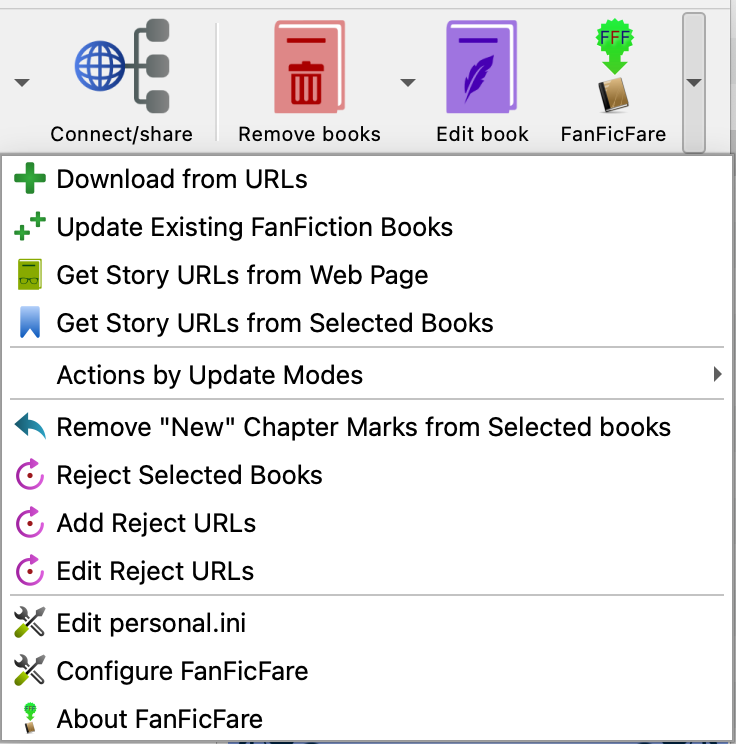
Click the small arrow next to the FanFicFare button in the toolbar, and choose Edit personal.ini. (The arrow always opens the menu. In section 3 you can make the button itself do the same.)
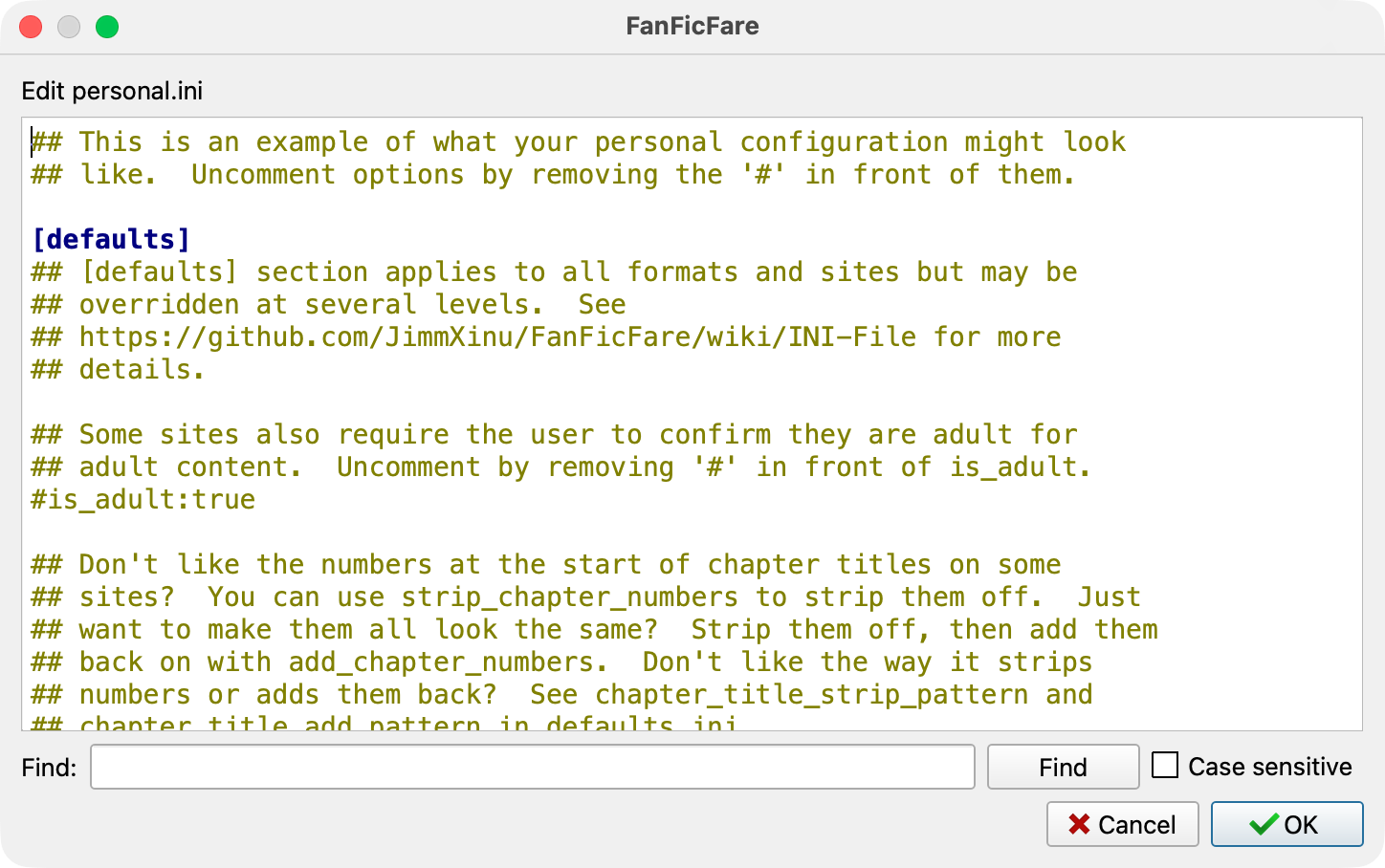
A window opens with a page of text. It is a set of examples, all switched off. Any line that starts with # is just a note and is ignored.
2. Add one line
Find the line [defaults]. Click at the end of it and press Return, then type this on the new line:
use_camoufox:true
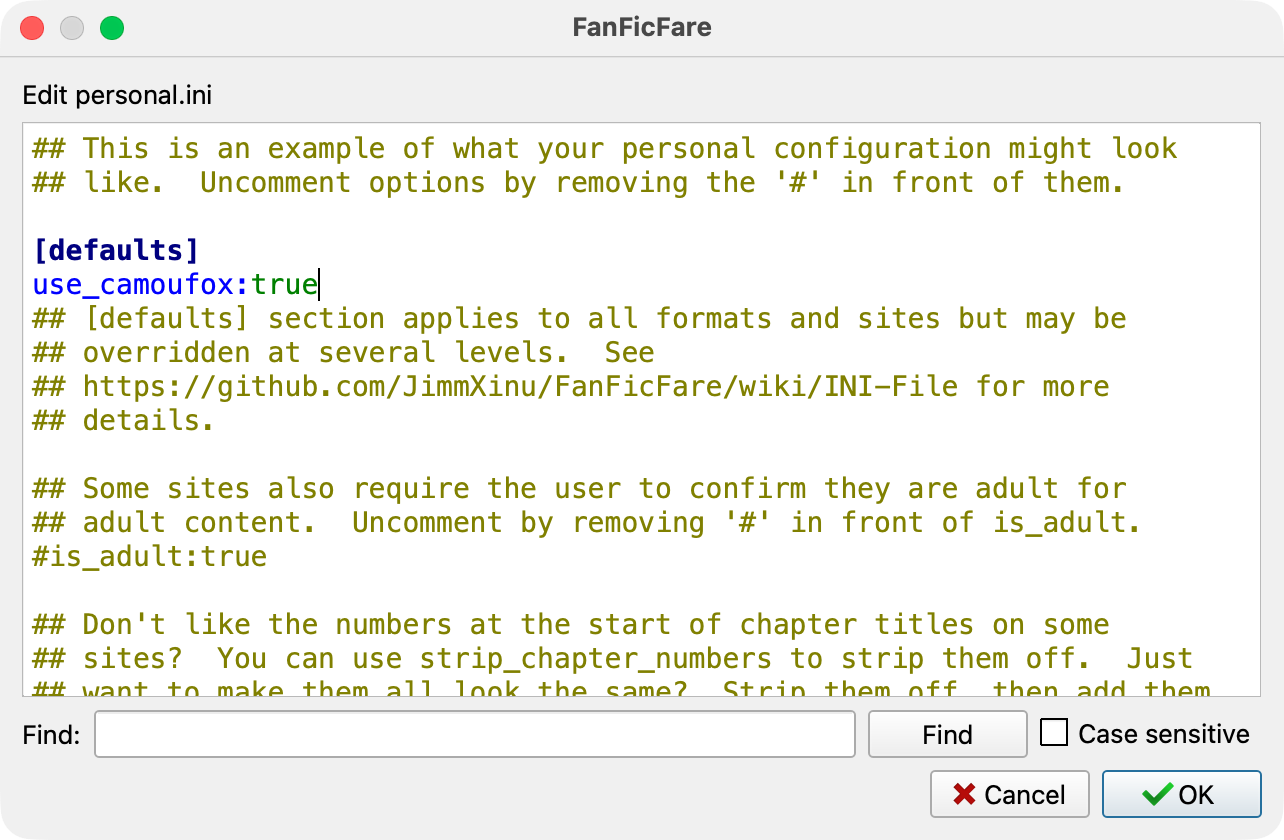
The line appears in colour once it’s recognised, with the name in blue and the value in green. Click OK to save.
What does this line do?
Camoufox is a real web browser that FanFicFare runs invisibly in the background to fetch stories. AO3 sometimes turns away plain automatic downloads, and going through a browser tends to avoid that. I strongly recommend this line. Without it, AO3 might block your download and you’ll get an error message.
The first time you download a story after adding this line, Calibre has to fetch the Camoufox browser. Please be patient and leave Calibre open until it finishes. It only happens once.
3. The FanFicFare settings window
FanFicFare has a settings window where you choose exactly how it behaves: for example which file format it saves, and what it does when a story is already in your library. Open the FanFicFare menu again and choose Configure FanFicFare.
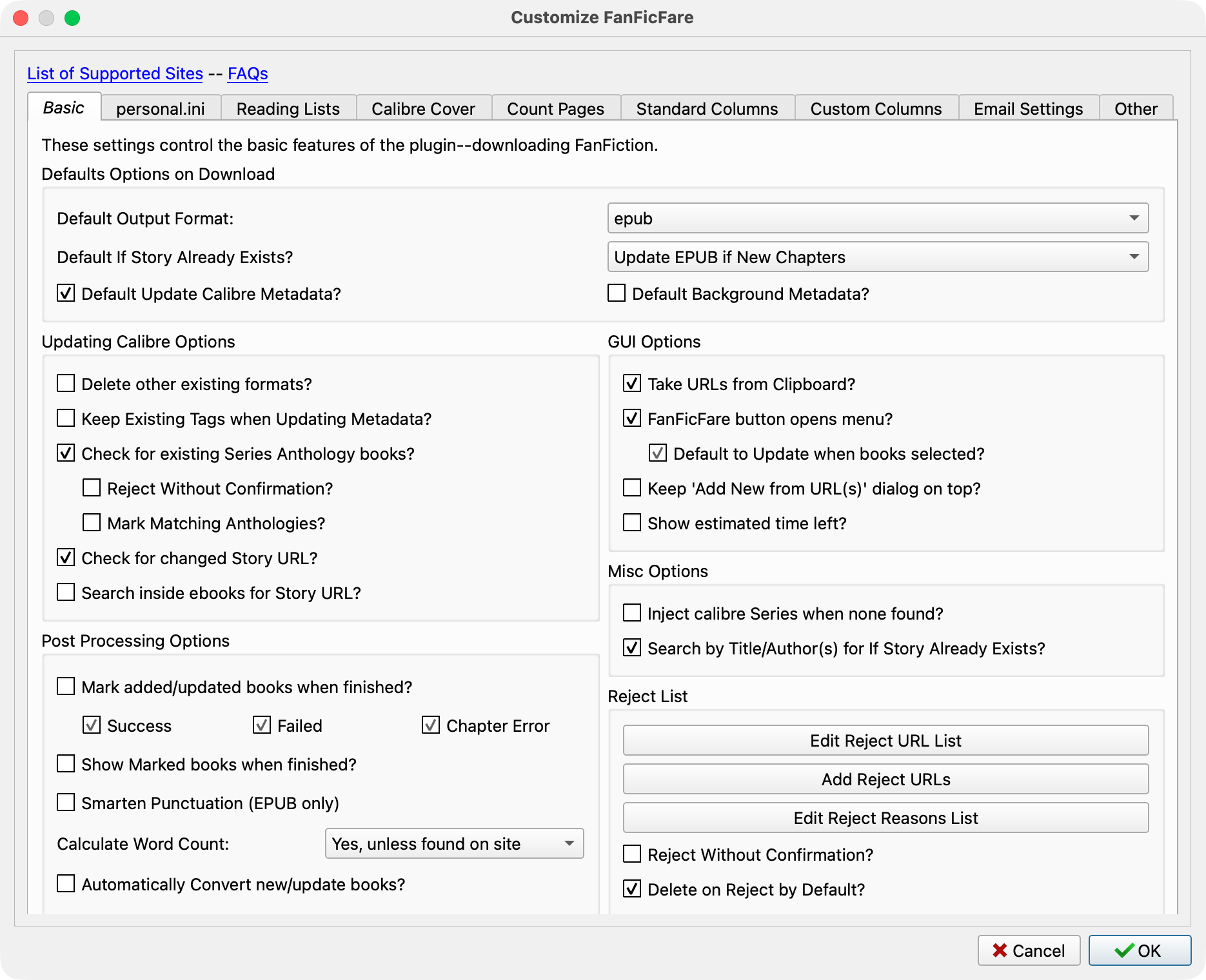
The standard choices are the right ones to start with: it saves stories as EPUB, and it updates a story only when it has new chapters. You don’t need to change any of them.
There is one tick-box I suggest turning on. On the Basic tab, on the right under GUI Options, tick FanFicFare button opens menu? and click OK.
What does it do?
With the tick, clicking the FanFicFare button always opens the menu, and you choose what to do. Without it, the button acts straight away: it opens the download window if no book is selected, and starts an update if a book is selected. That’s easy to trigger by accident.
Optional: skip the adult-content question
You can download Mature and Explicit stories without changing any settings. When you do, a window asks Are You an Adult? and wants you to confirm that you are an adult in your locale. Click Yes to carry on.
If you’d rather not be asked every time, you can answer once for good. In the personal.ini window, find the line:
#is_adult:true
and delete the # at the start so it reads is_adult:true. Click OK.
Optional: skip the login window
Some authors make their stories visible only to people logged in to AO3. When you try to download one, a small window says the story requires you to login, and asks for your AO3 username and password. Type them in and click OK.
Calibre doesn’t remember what you type into that window, so it asks again next time. If you’d rather not type them every time, you can store them in the settings. Add these lines at the very end of the personal.ini window, using your own details:
[archiveofourown.org]
username:YOUR_AO3_USERNAME
password:YOUR_AO3_PASSWORD
Anyone who can open Calibre on your computer can read it in this window. Only add it on a computer that's yours, and don't use a password you use anywhere else.
Something not working?
- The line isn’t coloured, or downloads ignore it: lines starting with
#are ignored, so check that yours doesn’t start with one. Use a colon, not an equals sign, and put it on its own line. - You can’t find
[defaults]: it’s near the top of the window, just under the first few lines of notes.
Next
FanFicFare is ready. In the next step you’ll use it to download your first story from its AO3 link.