5. Keep a story up to date
Fetch new chapters for a story you've already downloaded
Stories on AO3 grow as authors post new chapters. A book in your library doesn’t change by itself: it’s a snapshot of the story on the day you downloaded it. FanFicFare can check AO3 and add whatever is new.
It finds the story using the AO3 link stored in the book, which you saw as Ids in the details panel in Step 4. That’s why it works for stories downloaded with FanFicFare, and for the sample story from Step 1.
1. See what you have
The sample story from Step 1 is a good example, because it’s deliberately incomplete. Select it and click View to open it.
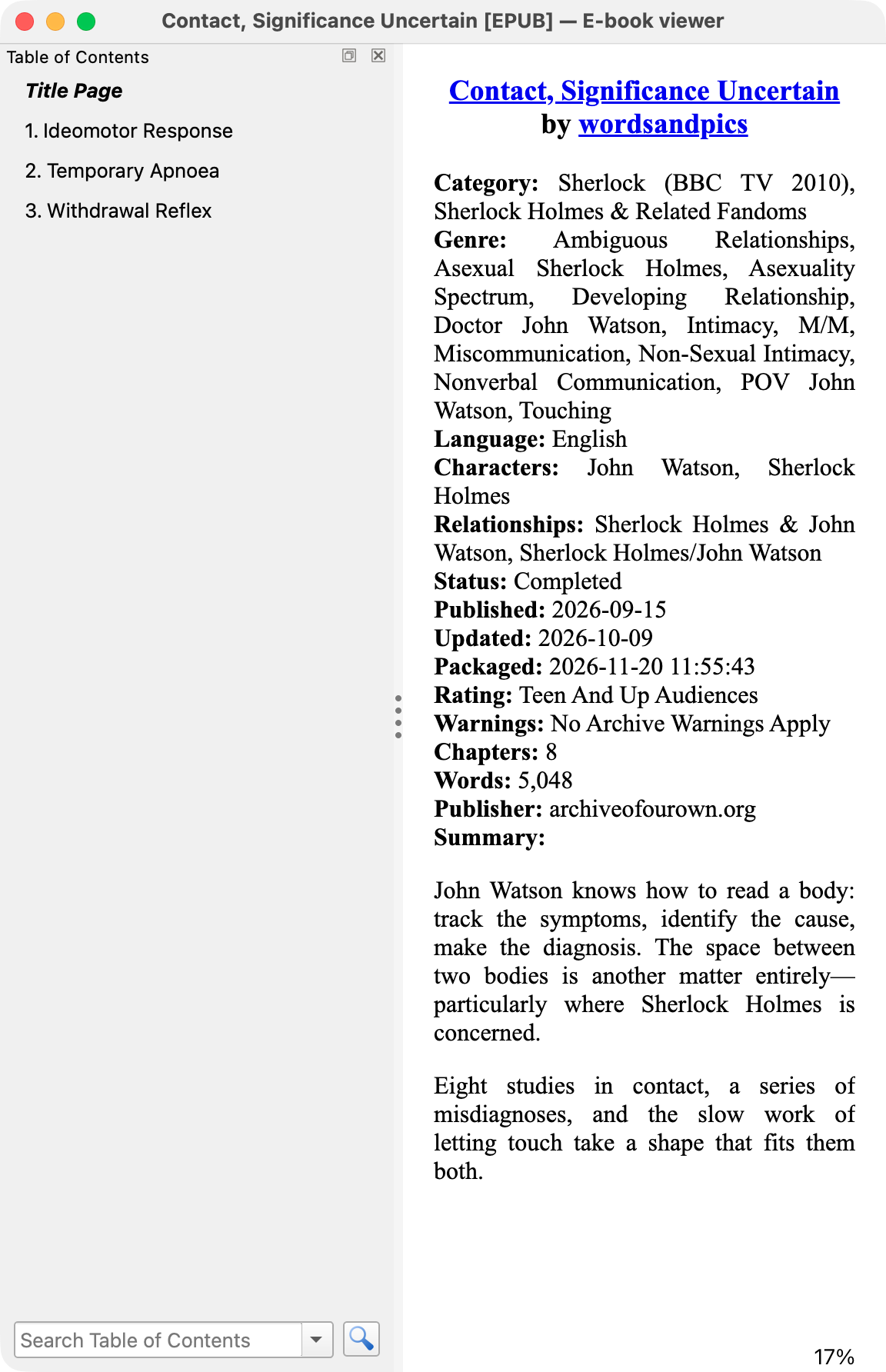
The title page describes the whole story as AO3 lists it: Chapters: 8. The contents list on the left shows what this file actually holds: only the first three chapters.
In real life you’d update a story that’s still being posted, one where the author has added chapters since you downloaded it. This sample stands in for that.
2. Start the update
Close the viewer. In Calibre, make sure the story is selected. Open the FanFicFare menu and choose Update Existing FanFiction Books.
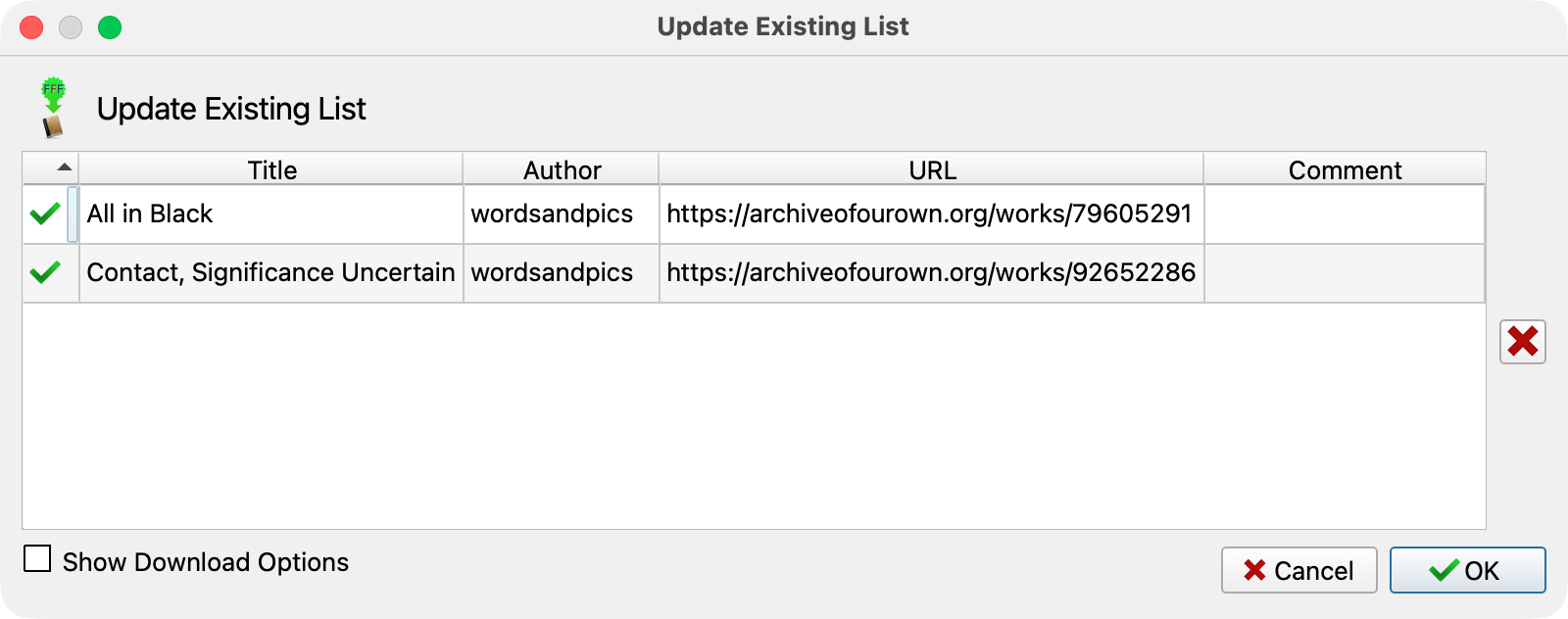
A window lists the books it’s about to update, with a green tick beside each.
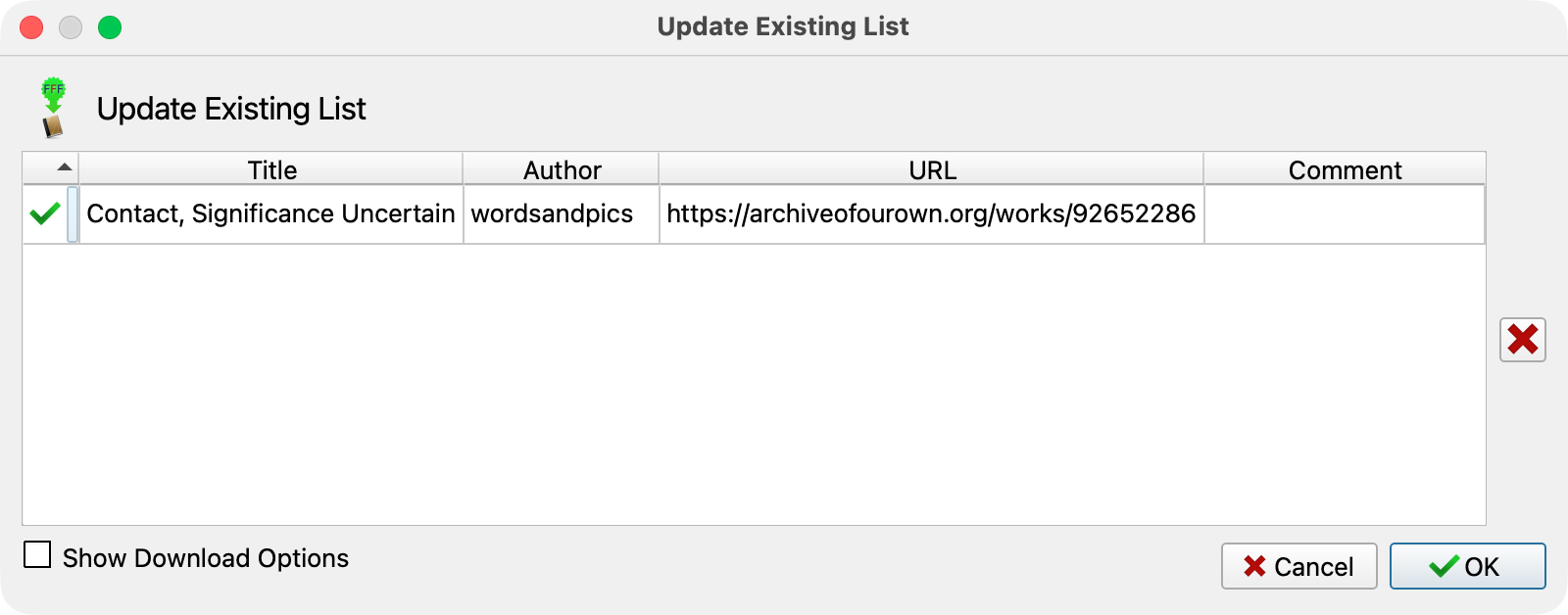
Click OK. As in Step 4, a progress window appears while FanFicFare checks AO3, and the Jobs counter at the bottom right shows work in the background.
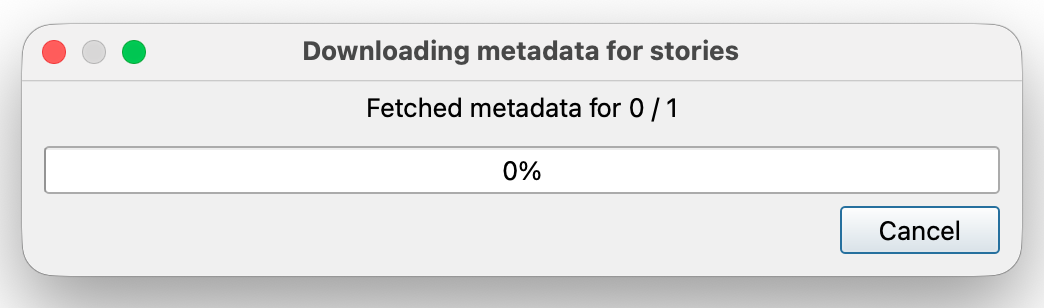
Updating a story with many chapters takes longer than a short one, because FanFicFare fetches each new chapter.
3. Say yes to add the new chapters
When FanFicFare finishes, it reports the result in the same kind of window you saw in Step 4 and asks whether to go ahead. Click Yes.
4. Check the result
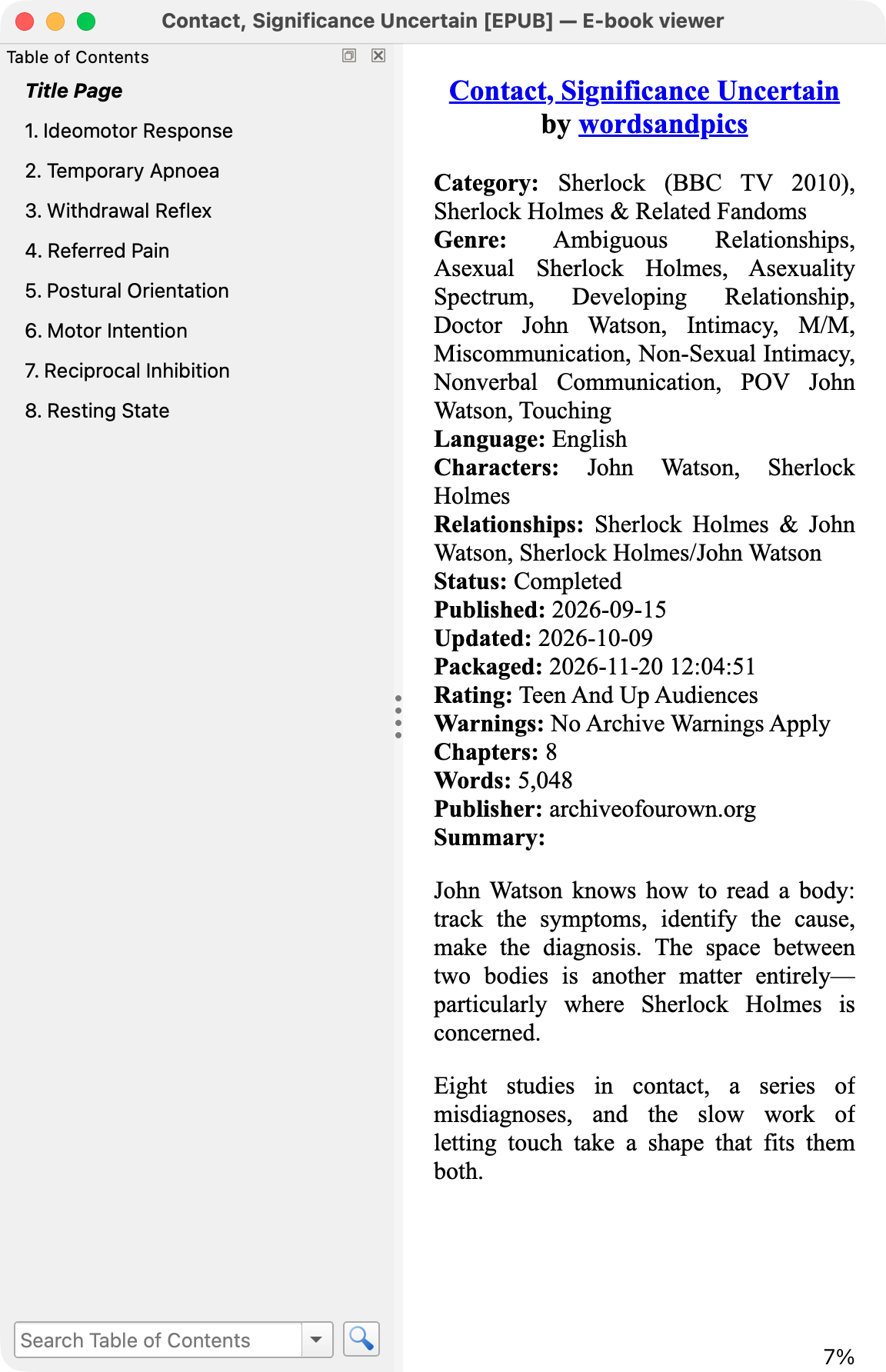
Open the story again with View. The contents list now shows all eight chapters.
When there’s nothing new
Run the update again on the same story. It now has every chapter, so FanFicFare finds nothing to add, and says so:
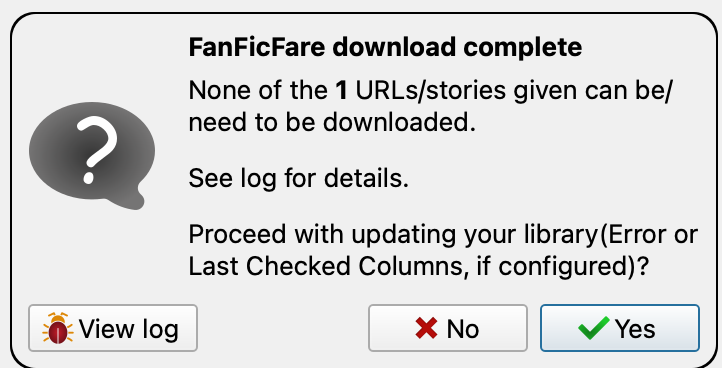
It still asks whether to proceed, but there’s nothing to add, so you can click No.
You can select more than one story before choosing Update Existing FanFiction Books. They all appear in the list, and FanFicFare checks each one in turn. But every story means more requests to AO3, and checking a lot of stories at once can get you blocked for a while. Do a few at a time.
If you follow a lot of stories, there's a smarter way to keep up. AO3 emails you when a story you subscribe to gets a new chapter, and FanFicFare can use those emails to update only the stories that have changed, instead of checking all of them. That's covered in a later guide.
- The update reports a problem: click View log in the results window. If it mentions AO3 refusing the request (for example 403 or 429), wait a few minutes and try again.
- FanFicFare can't find the story's link: select the book and click Edit metadata. Look at the Ids box. It should contain a line like
url:https://archiveofourown.org/works/79605291. If it's empty, type the story's AO3 address afterurl:, click OK, and try again. - Nothing seems to change: if the message says "None of the 1 URLs/stories given can be/need to be downloaded", the story has no new chapters.
Next
That’s the whole basic loop: add a story, download new ones from a link, and keep them up to date. The last page shows what you can do with your library from here.